
CineFlow — Netflix-Style Kajabi Course Theme
CineFlow is a Course/Product template. Install it from the selected Kajabi Course's Customize tab—not from Website Design.
Download the complete Word guide
Quick start
- 1Download the original CineFlow ZIP and keep it compressed.
- 2In Kajabi, open Products → Courses and select the Course you want to style.
- 3Open Customize, choose Install Template, then Upload Template.
- 4Upload the CineFlow ZIP. Do not activate it yet.
- 5Customize CineFlow and preview every page on desktop and mobile.
- 6Activate it only after the launch checklist passes.
Installing a Course template does not make it visible to customers. Kajabi requires a separate Activate action, so you can safely build and test CineFlow first.
Before you begin
- Confirm you have Kajabi admin access to the correct site and Course.
- Download the untouched CineFlow ZIP from your customer dashboard.
- Export or retain the currently active Course template as a rollback option.
- Prepare your logo, favicon, colors, fonts, hero media, and lesson thumbnails.
- Publish and organize the modules and lessons you want members to see.
1. Open the correct Kajabi Course
- 1Sign in to Kajabi and open Products → Courses.
- 2Select the Course or membership product that should use CineFlow.
- 3Confirm its Outline contains the expected modules and lessons.
- 4Open the Customize tab at the top of the Course editor.
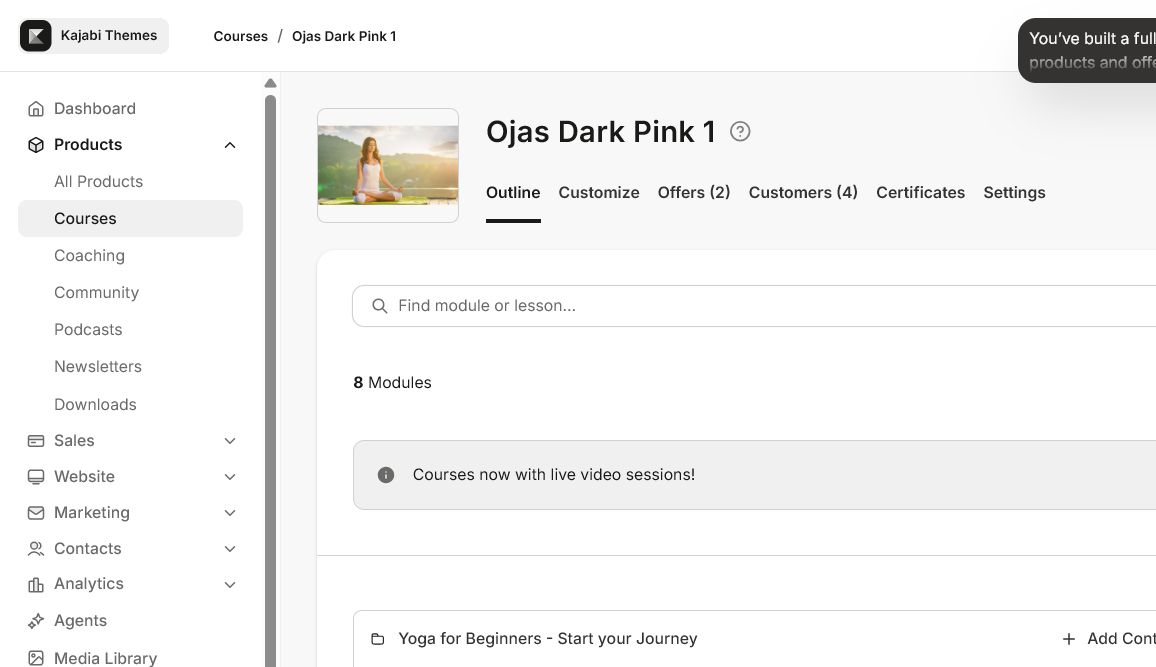
Each Course has its own template. Repeat the installation only for products that should use CineFlow.
2. Upload CineFlow
- 1On the Customize screen, choose Install Template.
- 2Choose Upload Template and select the original CineFlow ZIP.
- 3Wait for Kajabi to finish installing it.
- 4If available, rename it to CineFlow — your course name.
- 5Leave your current template active while you configure and test CineFlow.
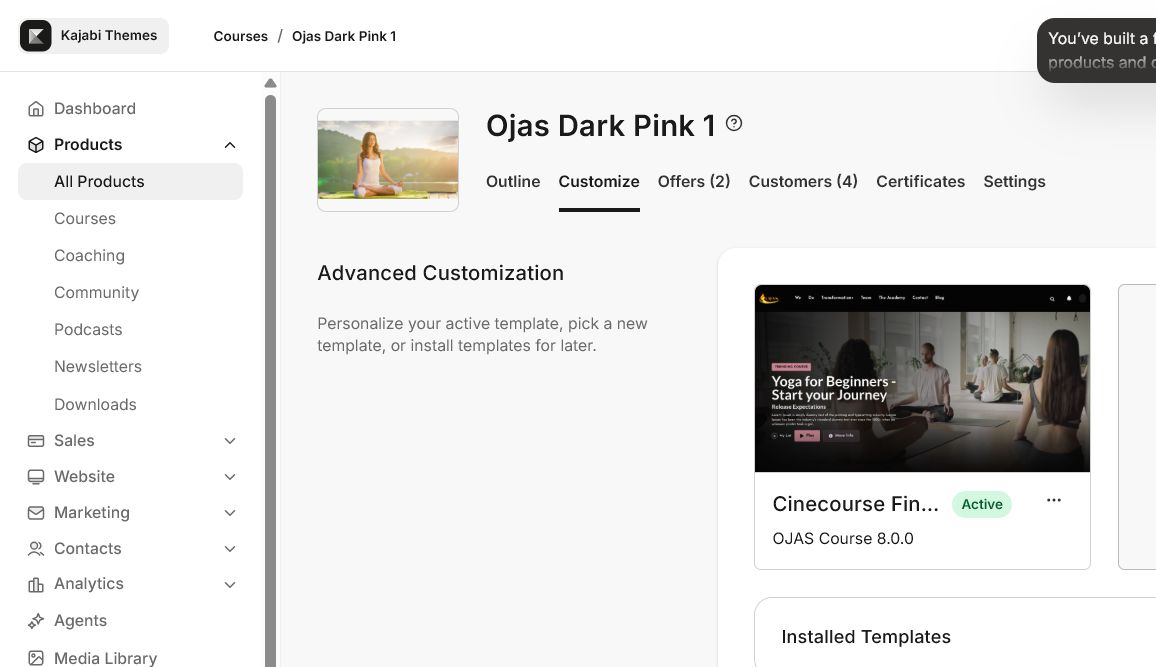
Upload the downloaded ZIP as provided. Do not upload a folder, a re-zipped nested folder, or a Website template ZIP.
3. Understand the visual editor
Open the CineFlow template menu and choose Customize.
- Top page selector: Switch between Product, Categories, Category, Post/Lesson, Search, Announcements, and Comment pages.
- Left sidebar: Sections controls page-specific layout; Settings controls global brand and theme options.
- Preview canvas: Shows the member-facing page. Preview performs a full browser check and Save keeps your edits.
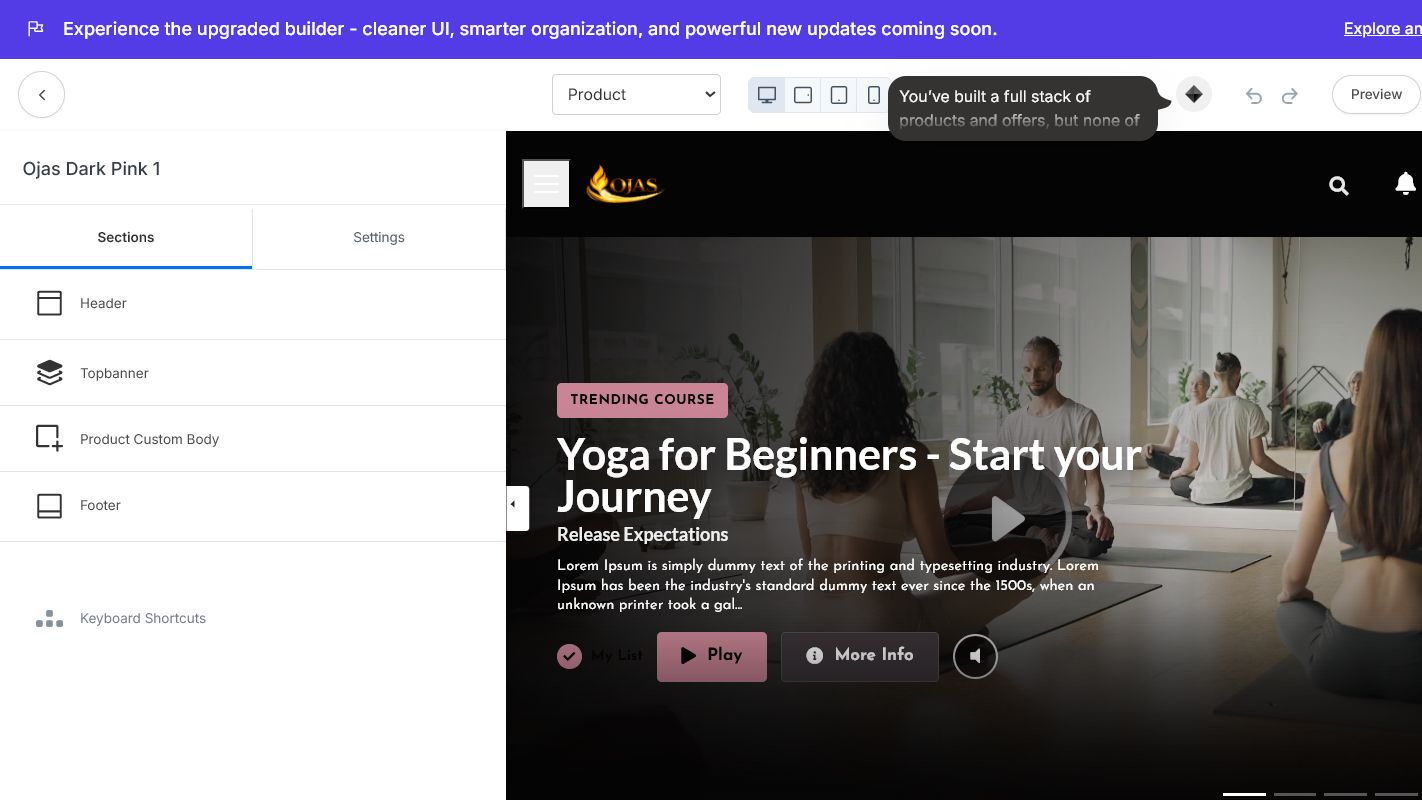
Save stores changes inside the installed template. Activate makes that template visible to customers.
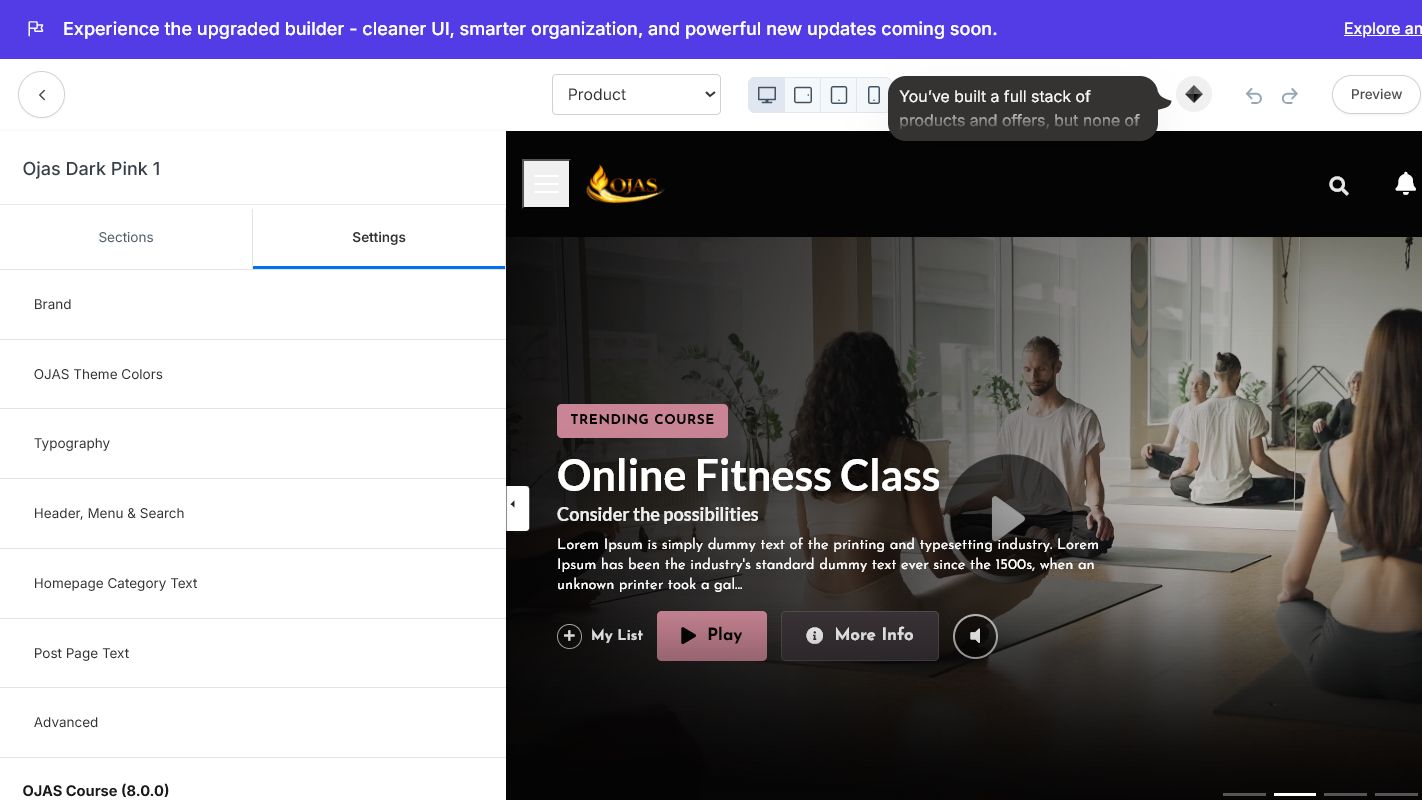
4. Apply your brand
Start in Settings so the design is consistent before editing individual sections.
| Area | Recommended setup |
| Logo | Use a transparent, high-resolution asset with clear space around it. |
| Favicon | Use a simple square icon, ideally prepared at 512 × 512 px. |
| Theme colors | Use a near-black background, high-contrast text, and one restrained accent color. |
| Typography | Use one readable body font and one display font. |
| Hero media | Use a consistent 16:9 image or video with a clear focal point. |
| Content cards | Use consistent 16:9 lesson thumbnails across every row. |
Check text contrast, button labels, focus states, and mobile readability. Never put critical text only inside an image.
5. Configure the header and navigation
Open Settings → Header/Menu/Search.
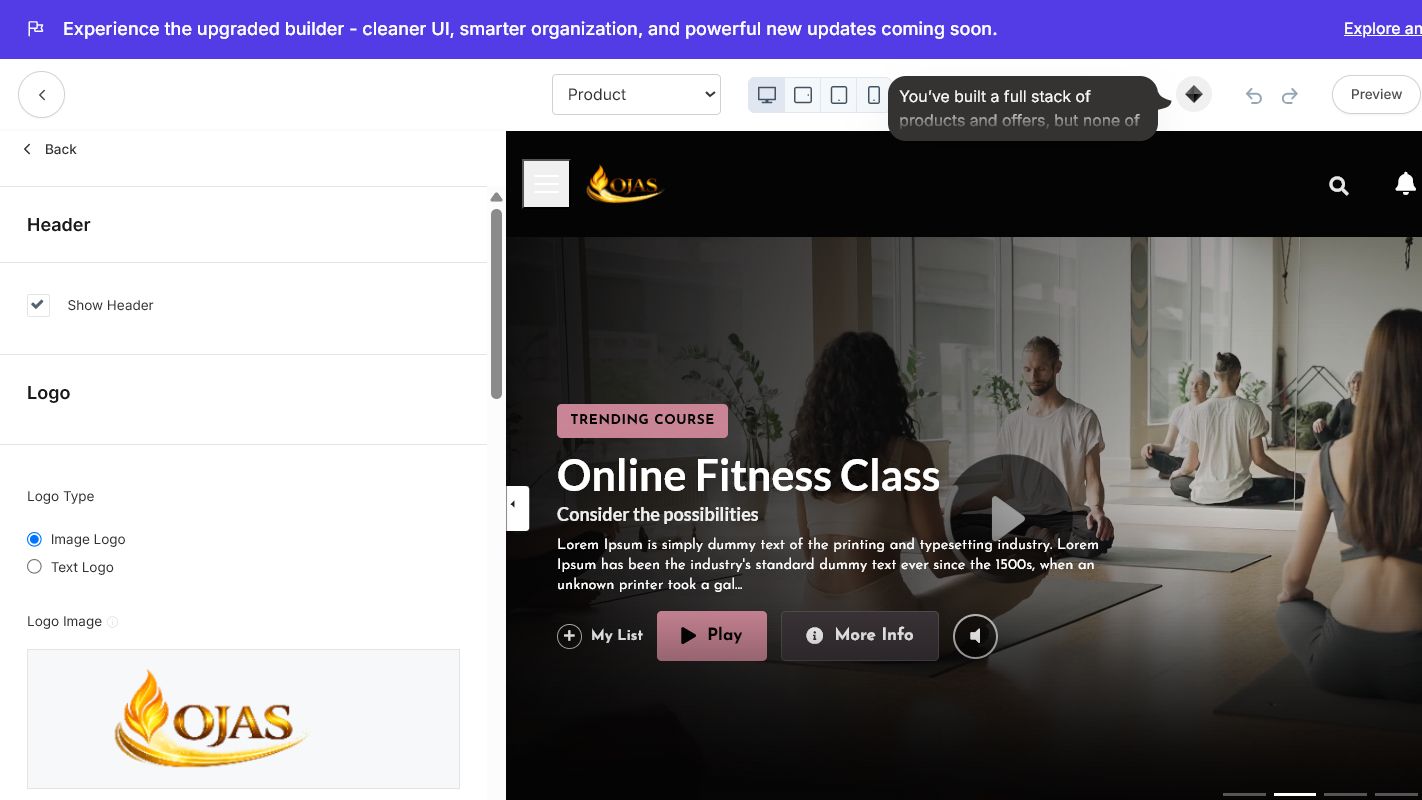
- Choose Image Logo or Text Logo and check it on the dark header.
- Set Logo Action to Product Home unless members should intentionally leave the Course.
- Select a short Kajabi navigation menu with only useful member links.
- Use clear labels for Library, Favorites/My List, Search, Account, and Logout.
- Enable an announcement only when it adds timely value.
If a menu link is wrong, update the selected Kajabi navigation link list or select another list in CineFlow.
6. Build the Netflix-style content experience
| Kajabi item | CineFlow presentation |
| Course | The complete product shown to the member. |
| Module | A category or horizontal content row. |
| Lesson | A playable content card with title, thumbnail, content, and progress. |
| Thumbnail | The visual cover for the lesson card. |
| Publish/Drip | Controls when a member can access the content. |
- 1Rename modules as clear browsing categories.
- 2Keep lesson titles short enough for cards and mobile screens.
- 3Add a consistent thumbnail to every visible lesson.
- 4Check videos, downloads, captions, descriptions, and next-step links.
- 5Publish or schedule content intentionally.
7. Preview and quality assurance
- Header, logo, search, navigation, account menu, and logout work.
- Hero media loads and its primary action works.
- Content rows scroll and cards do not clip or overlap.
- Category and lesson pages match the global design.
- Video, captions, downloads, progress, and next/previous navigation work.
- Search handles both results and no-result states.
- Favorites/My List works for a real test member when enabled.
- Locked, drip, unpublished, completed, and empty states look intentional.
- Mobile cards, menus, tap targets, and long titles remain usable.
Test with a non-admin member in a separate or private browser window. Open the Course from the member Library instead of relying only on editor Preview.
8. Activate CineFlow safely
- 1Return to the Course's Customize tab.
- 2Confirm CineFlow is the installed template you tested.
- 3Retain the previous active template as your rollback option.
- 4Open the CineFlow template menu and choose Activate.
- 5Test the Course again as a real member.
If a serious issue appears, reactivate the previous template while correcting CineFlow. Course content, Offers, customers, and purchases remain separate from the visual template.
9. Updating CineFlow later
- 1Download the new CineFlow ZIP and read its release notes.
- 2Export your customized current template as a backup.
- 3Install the update beside the live template unless the release explicitly supports an in-place upgrade.
- 4Compare or reapply settings, preview every page, and then activate the tested version.
Kajabi documents its third-party ZIP upgrade feature as beta for selected accounts. Use it only when available and explicitly supported by the CineFlow release.
Troubleshooting
| Issue | What to check |
| Template will not upload | Use the original Course/Product ZIP and upload it from the Course's Customize tab. |
| Installed but not visible | Preview it, then use the separate Activate action when ready. |
| Logo or favicon is missing | Re-select the asset, save, and verify its file type and contrast. |
| Menu links are wrong | Select or edit the correct Kajabi navigation link list. |
| Cards or rows are empty | Confirm modules and lessons are published, accessible, and have thumbnails. |
| A lesson looks unstyled | Select Post/Lesson in the top page selector and configure it separately. |
| Changes do not appear | Save, refresh Preview, and confirm you are editing the intended template. |
| Mobile layout is crowded | Shorten titles, reduce menu items, and use consistent thumbnails. |
Final launch checklist
- Correct Kajabi Course selected.
- Original CineFlow ZIP installed and clearly named.
- Brand, colors, typography, header, and navigation configured.
- Modules and lessons organized into clear rows.
- Every visible lesson has a suitable thumbnail and working content.
- Product, Categories, Category, Post, Search, Announcements, and Comment pages reviewed.
- Desktop, mobile, and real member testing passed.
- Previous template retained as a rollback option.
- CineFlow activated only after all checks passed.
Need support?
Include the CineFlow version, affected page type, browser/device, a cropped screenshot, and exact reproduction steps. Never share Kajabi passwords, customer information, or private credentials.
Guide resources
Downloadable attachments
Continue learning
Ready to build your CineFlow site?
Keep this guide open while you customize, and contact support if you get stuck.