Clarity Bridge — Coaching & Consulting Blueprint
Clarity Bridge is the approved coaching and consulting variant built on KineticRise — Performance Stream 7.1.4. Use the supplied Clarity Bridge logo and thumbnail without stretching, rotating, or recoloring them.
Approved Clarity Bridge brand palette
| Role | Color |
| Foundation | #17324D |
| Primary | #197C88 |
| Accent | #F2B84B |
| Soft background | #EDF7F5 |
Use the primary logo on white/soft backgrounds, the reversed logo on Foundation or Primary, and the brand mark only for compact square placements.
Complete installation and feature guide
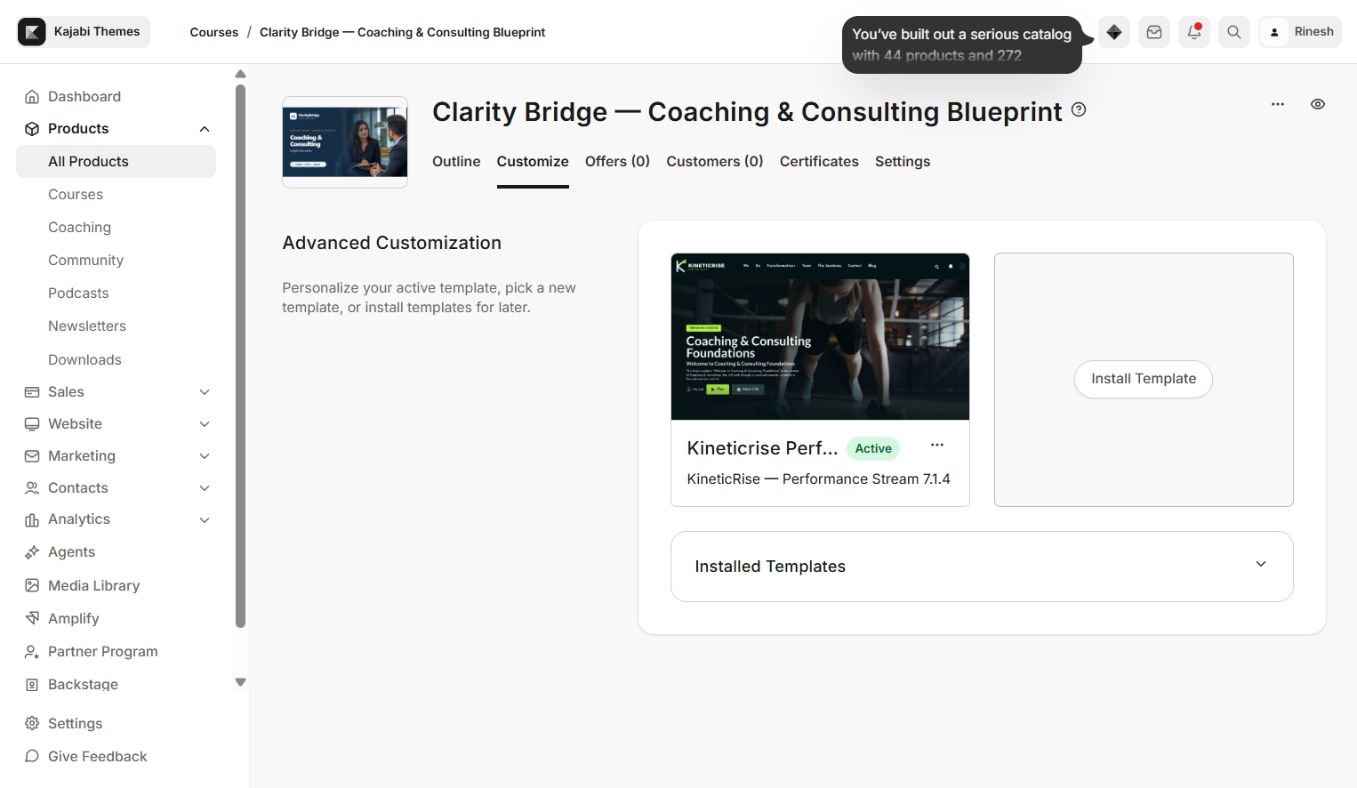
KineticRise — Performance Stream 7.1.4 is a cinematic Kajabi Course template demonstrated on Clarity Bridge — Coaching & Consulting Blueprint. This guide follows the real installed template, logo, thumbnail, editor controls, and course structure. Keep the supplied logo and thumbnail assets; replace them only when intentionally rebranding for a customer.
Before you install
- Download the KineticRise ZIP from your Ojas Creative account and keep it compressed.
- Confirm the target Kajabi Course before uploading.
- Keep the currently active Kajabi template installed for rollback.
- Back up custom code and note any active header, footer, Community, and navigation settings.
- Prepare a non-admin test member with access to the Course and Community.
Safe installation
- 1In Kajabi, open Products → Courses → your Course → Customize.
- 2Choose Install Template → Upload Template.
- 3Upload the untouched KineticRise ZIP.
- 4Confirm KineticRise — Performance Stream 7.1.4 appears under Installed Templates.
- 5Open Customize on the new copy while the old template remains active.
- 6Configure branding and sections, then preview desktop and mobile.
- 7Activate only after member testing passes.
Uploading does not grant product access or publish course content. Kajabi continues to control purchases, access, drip, progress, customers, and Offers.
Color pattern
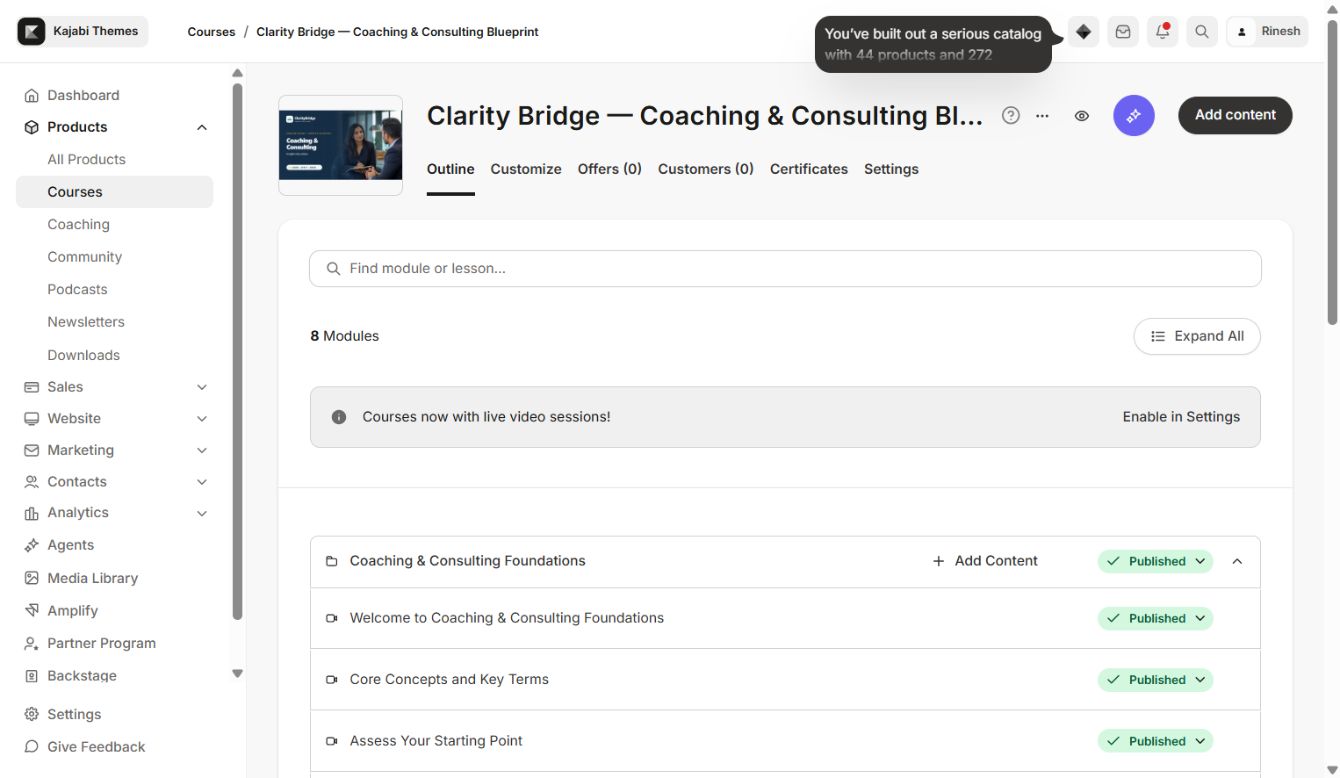
Open Settings → OJAS Theme Colors. KineticRise uses four coordinated roles: Accent / Buttons (Light) for calls to action, Brand Tone (Dark) for identity and navigation, Surface / Cards (Darker) for panels, and Theme Background (Deepest) for the cinematic base. Maintain readable contrast and test text, focus rings, locked labels, progress bars, and buttons after every color change.
Global settings
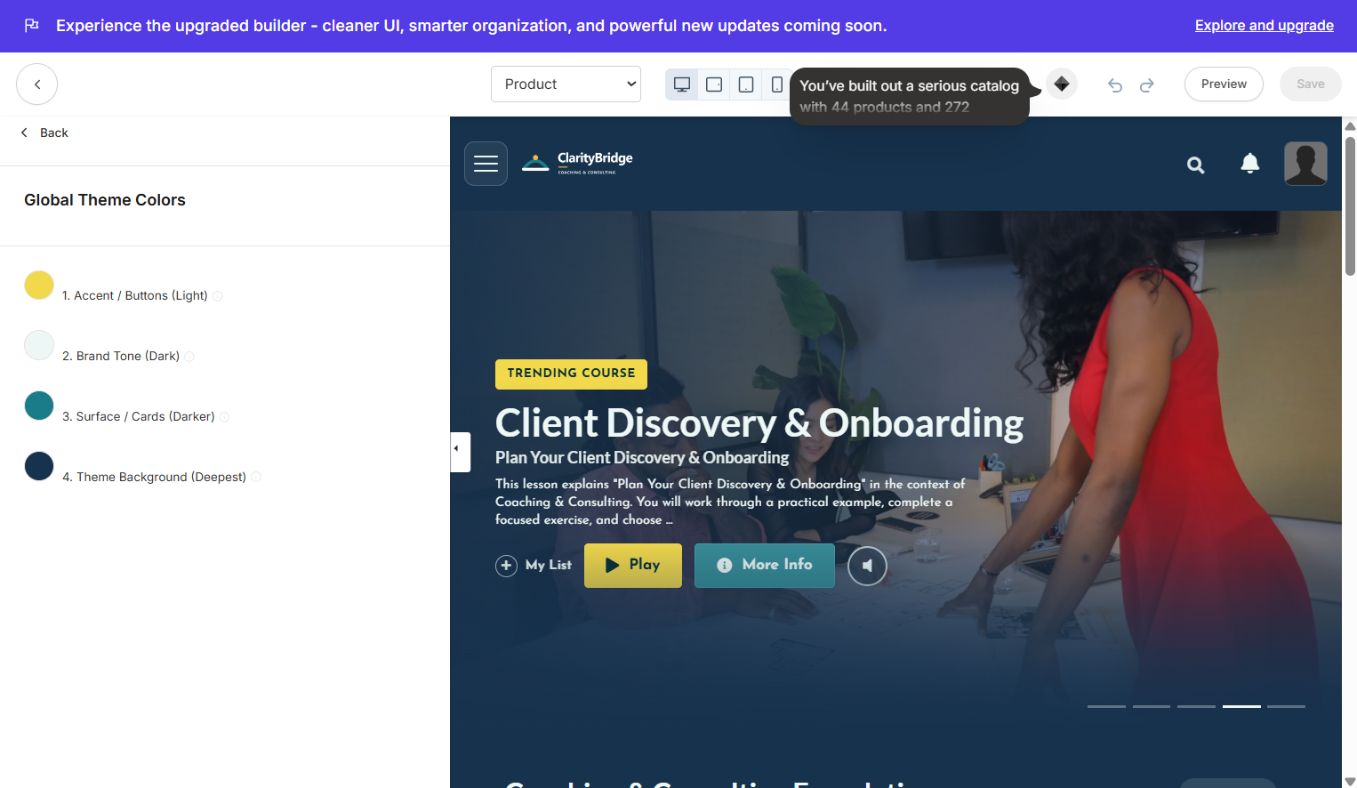
The installed editor exposes Brand, OJAS Theme Colors, Typography, Header, Menu & Search, Homepage Category Text, Course Display, Post Page Text, Advanced, and Community Experience. Configure the supplied logo at desktop and mobile sizes, choose heading/body typography, review search and menu labels, set category wording, and keep advanced code unchanged unless you have a tested backup.
Main sections and features
- Header: logo, navigation, search, announcements, account controls, and responsive behavior.
- Topbanner: featured messaging or promotional content.
- Product Custom Body: cinematic hero, featured lesson, course progress, category rows, lesson cards, locked states, and calls to action.
- Community Widget: Kajabi Community entry point for eligible members.
- Footer: legal, support, social, and secondary navigation.
- Member experience: favorites/My List, search, lesson media, progress, locked/dripped content, responsive layouts, and mobile-safe controls.
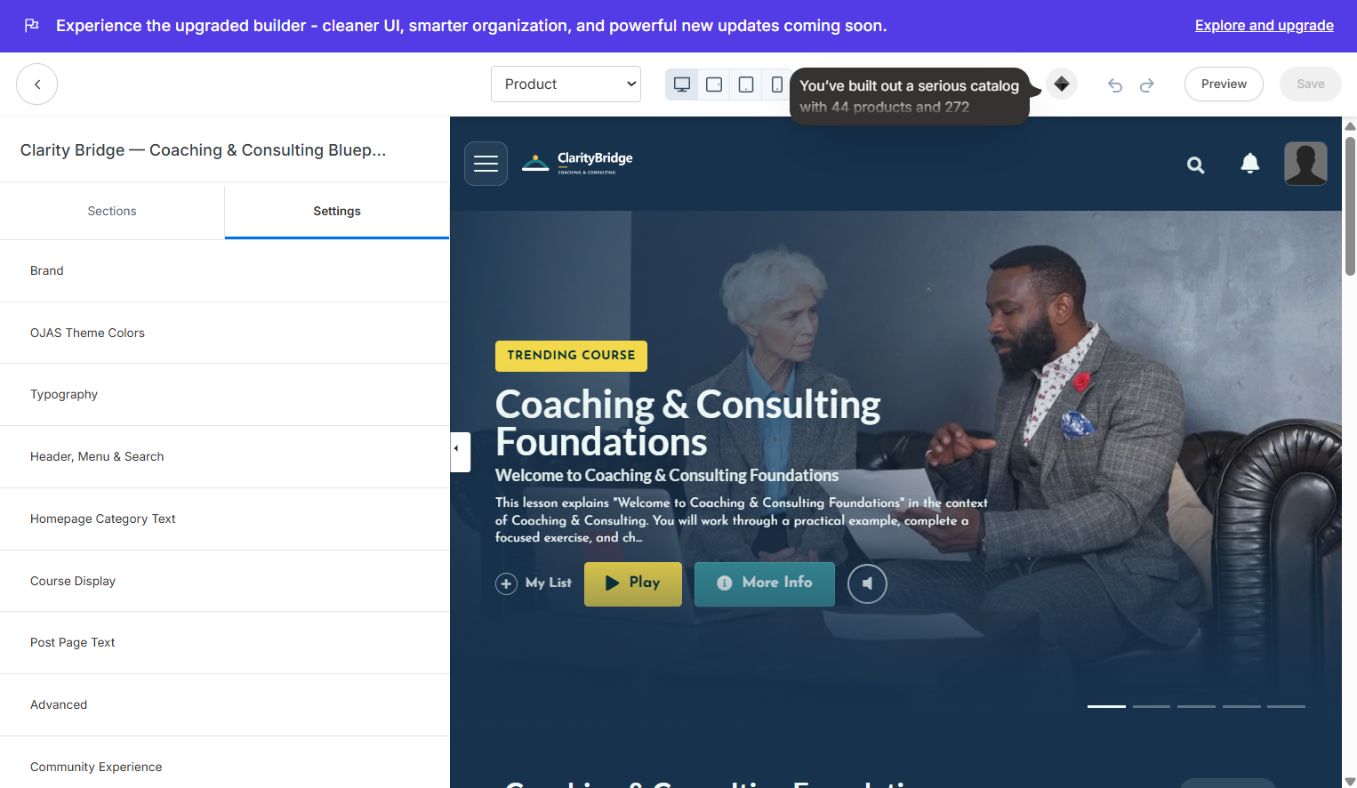
Course setup guidance
The Clarity Bridge demonstration includes coaching foundations, niche and ideal-client clarity, signature offer design, client discovery and onboarding, lead generation, a locked seven-day sprint, and draft delivery/scale modules. Use Kajabi's Published, Draft, Locked, and Drip controls as the source of truth; do not simulate access restrictions with styling.
Community setup
Select the intended Kajabi Community/circle in Community Widget or Community Experience. Grant the same non-admin member access to both Course and Community, then test opening the widget. An admin preview can see content a customer cannot, so member testing is mandatory.
Pre-launch QA
- Supplied logo and thumbnail display correctly without stretching.
- Course Home, Categories, Category, Post, Search, and Announcements views work.
- Video/audio, downloads, comments, completion, previous/next, and progress states work.
- Published, Draft, Locked, and Dripped content behave correctly.
- Search, favorites, Community, menu, and footer work for a non-admin member.
- Desktop, tablet, and a real phone are checked.
- Old template remains installed until the new version is proven stable.
Updating and rollback
Upload every future ZIP as a separate installed template. Configure and test the new copy, activate it, and retain the previous working version until production verification is complete. To roll back, reactivate the previous template; no customer, purchase, or course-content data needs to be moved.
Continue learning
Ready to build your CineFlow site?
Keep this guide open while you customize, and contact support if you get stuck.