
Ojas Creative — Ojas Stream
Complete installation, customization and feature guide
Ojas Stream is a premium Kajabi Course/Product template for an on-demand, cinematic member library. This guide covers installation, every major editor area, native Kajabi Community activation, access testing, mobile QA, updates and troubleshooting.
Install Ojas Stream from the selected Course's Customize tab. It does not replace your main Kajabi Website template.
Download the complete Word guide
Quick start
- 1Open Products → Courses and select the correct Course.
- 2Open Customize → Install Template → Upload Template.
- 3Upload the untouched Ojas Stream ZIP.
- 4Confirm Ojas Creative — Ojas Stream 7.1.4.
- 5Customize and test while the previous template remains active.
- 6Test with a non-admin member on desktop and a real phone.
- 7Activate Ojas Stream only after QA.
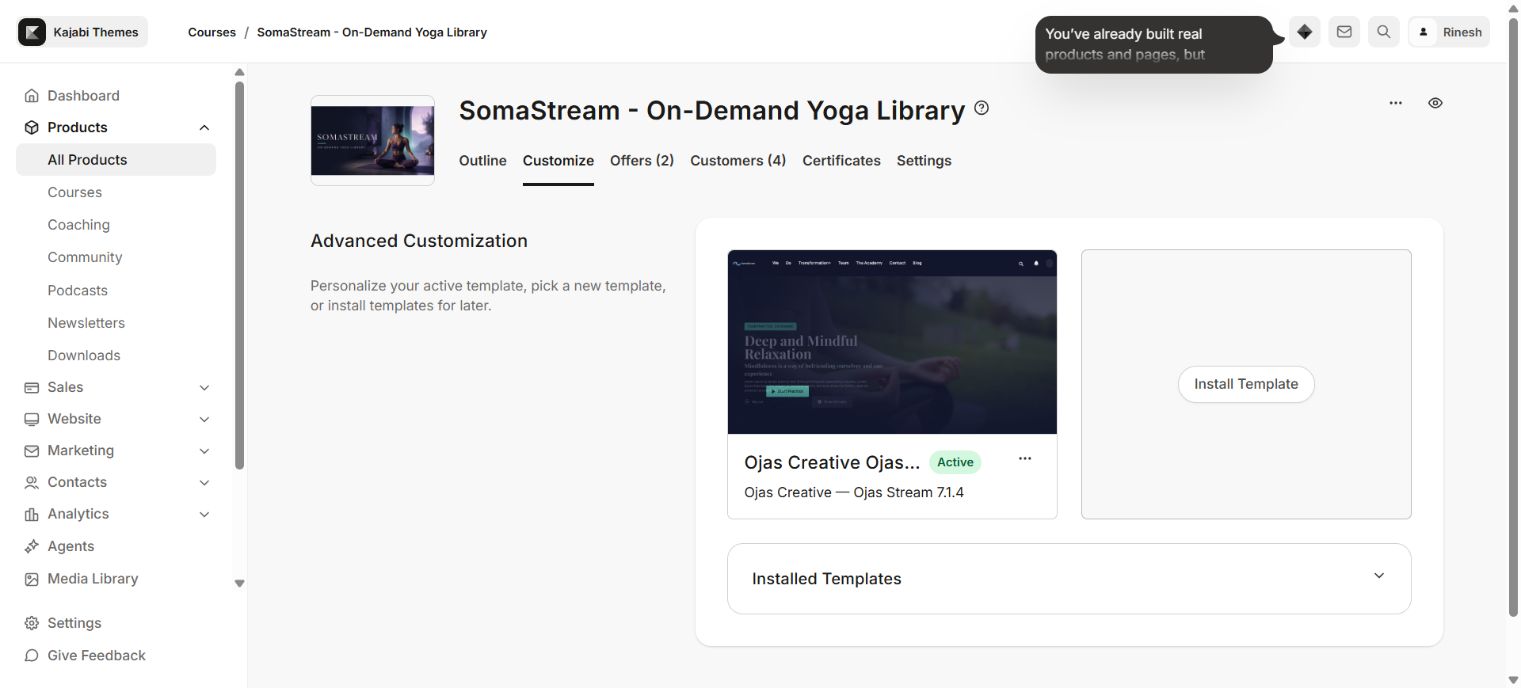
Installing a template does not publish it. Activate is a separate Kajabi action. Activation changes presentation; Course content, Offers, purchases, customers, progress and access remain controlled by Kajabi.
Before installation
- Confirm the correct Kajabi site and Course.
- Keep the current active Course template installed for rollback.
- Do not extract or re-zip the original package.
- Prepare transparent logos, favicon, colors, fonts, category/lesson media, instructor details and navigation URLs.
- Review published, draft, locked, drip and completed states.
- Create a non-admin member with the same access as a real buyer.
Recommended configuration order
- 1Brand and OJAS Theme Colors
- 2Typography
- 3Header and Footer
- 4Product Home hero and categories
- 5Post media and member labels
- 6Search, favorites, announcements and navigation
- 7Community
- 8Mobile tab bar and safe areas
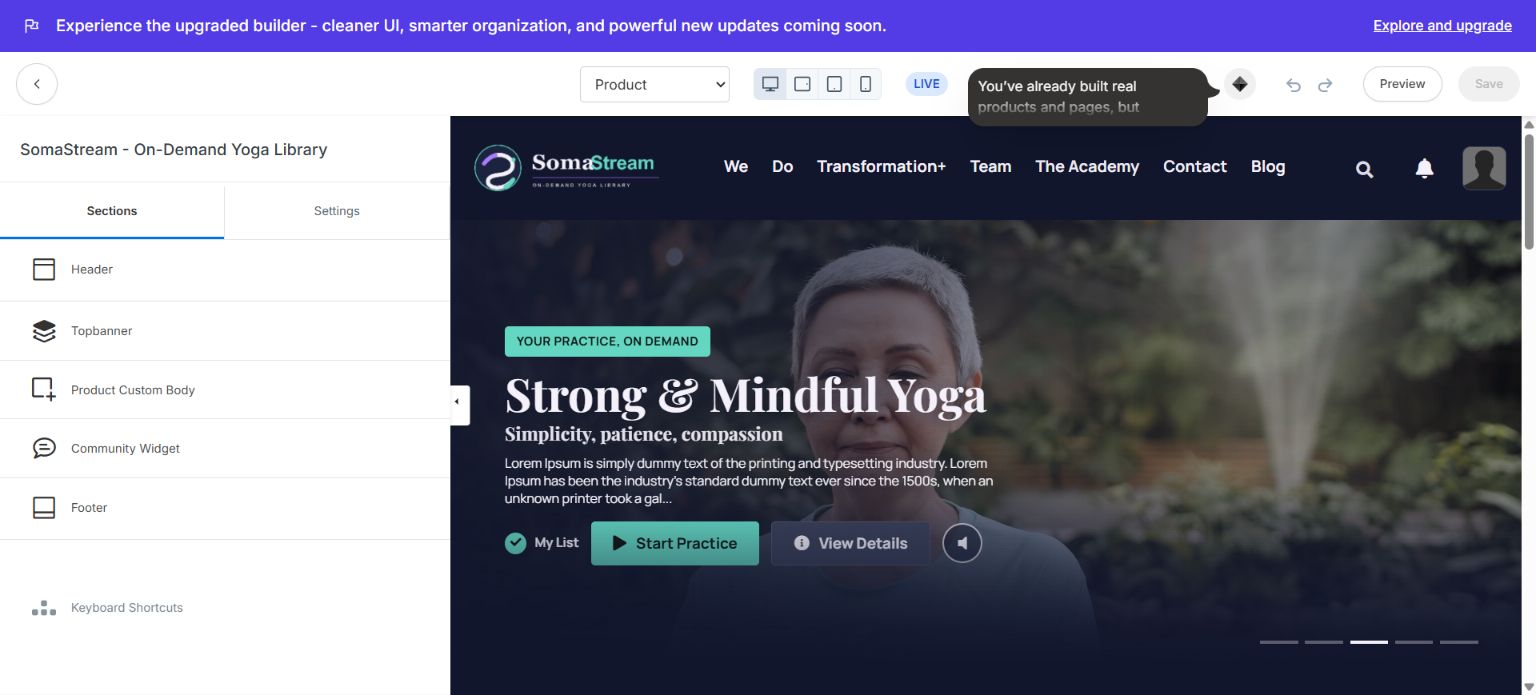
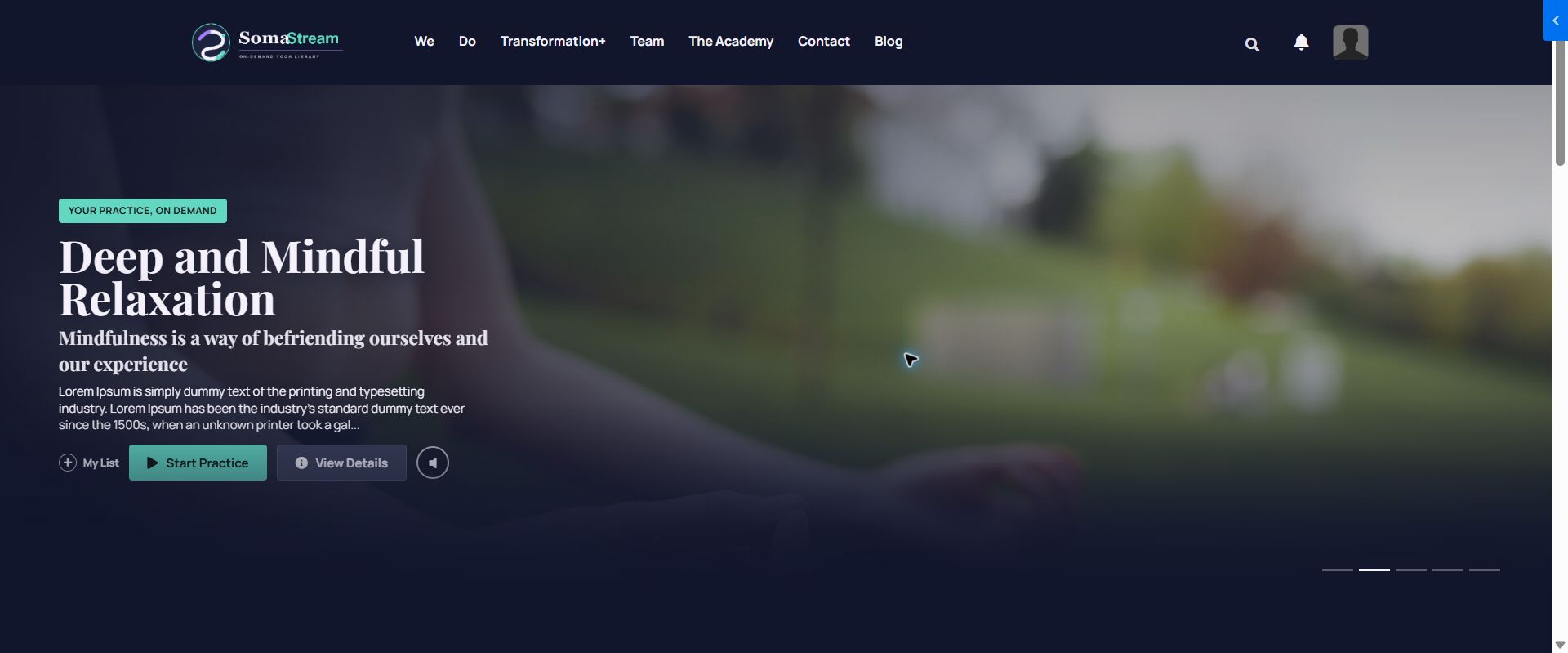
Sections reference
### Header
Configure visibility, image/text logo, desktop and mobile logo dimensions, logo action, menu labels and links, and the optional announcement. Set mobile dimensions separately so the logo never clips.
### Topbanner
Configure hero/slider behavior, right-side video, video source, poster, autoplay and playback controls. Use compressed media and a clear poster for reliable mobile loading.
### Product Custom Body
Enable optional Product Home content, add multiple supported blocks, reorder them, choose their position, card width and visual style. Supported layouts include video, text, image and mixed media.
### Community Widget
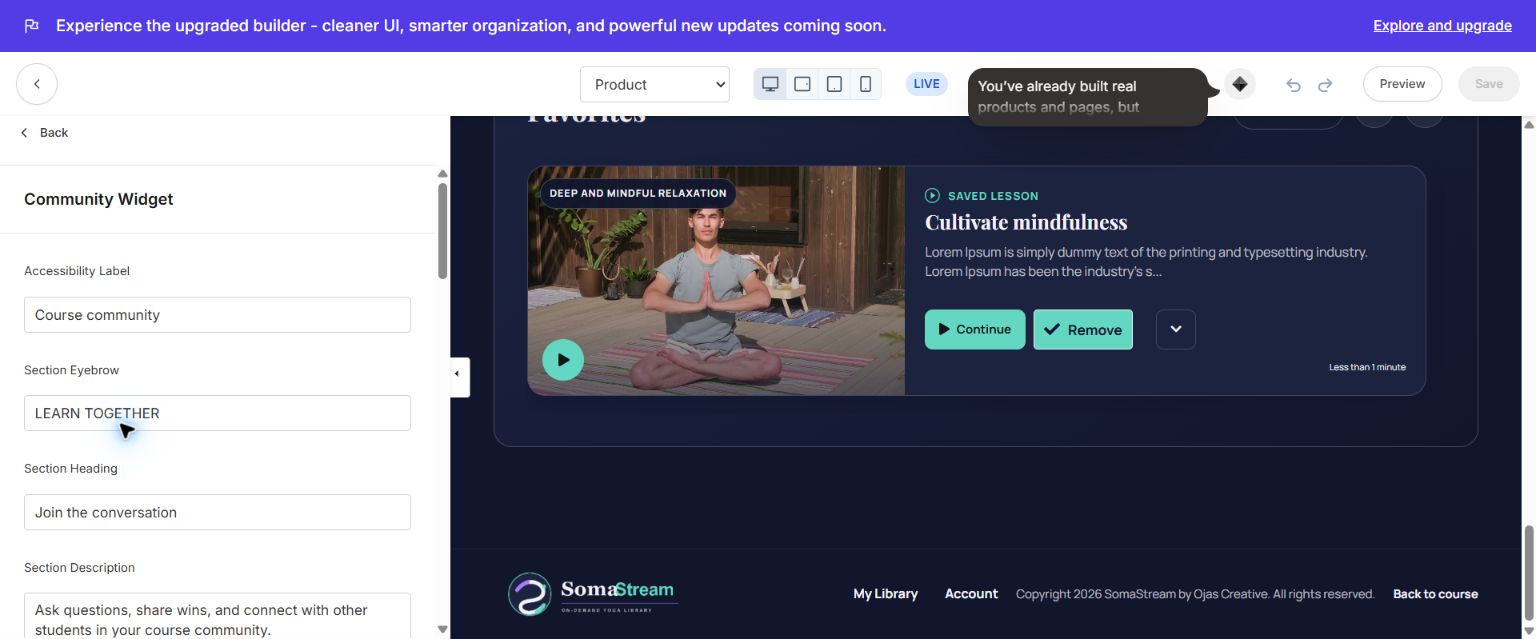
Controls Community copy, popup labels, the Kajabi channel, access guidance, image/title/fonts and the create/configure empty states. The complete activation workflow appears below.
### Footer and mobile tab bar
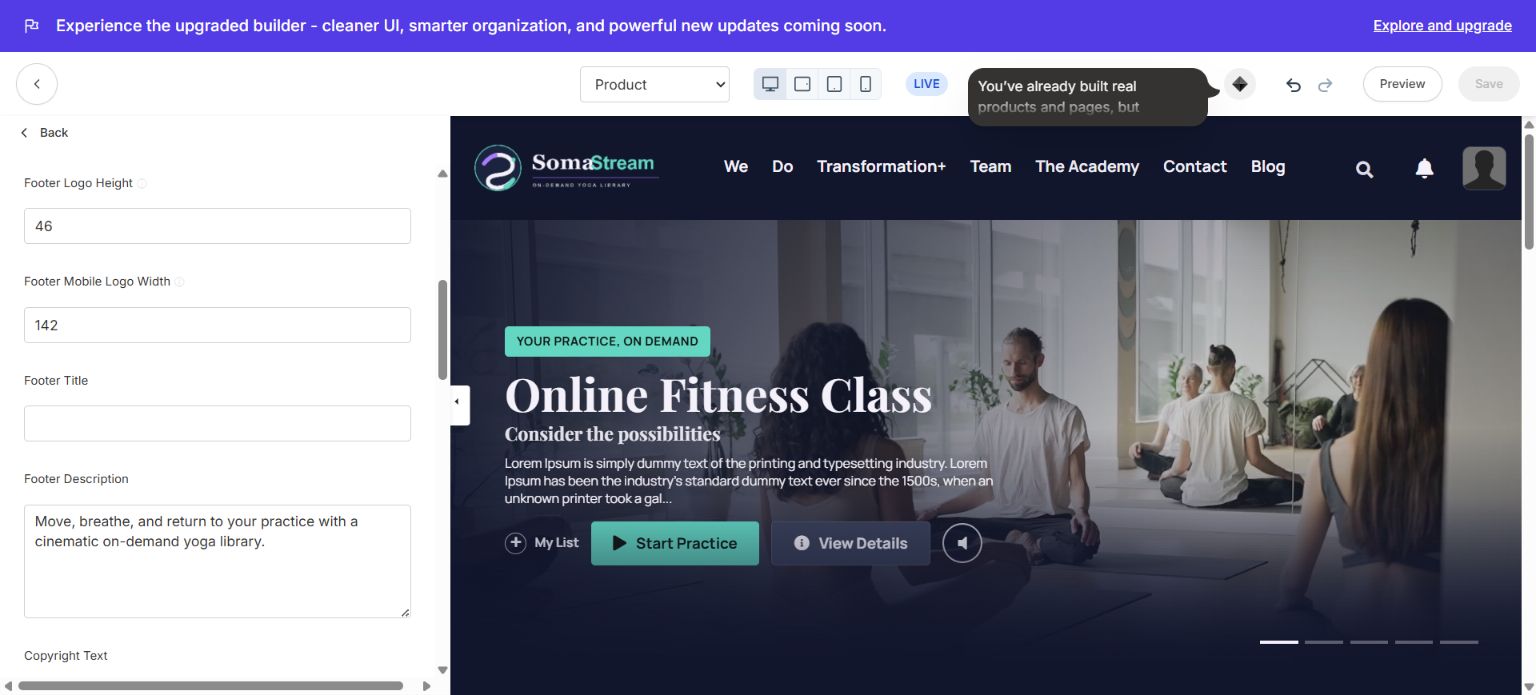
Configure footer logo, desktop/mobile dimensions, title, description, copyright, Course link, social links and the mobile navigation labels.
### Post Media
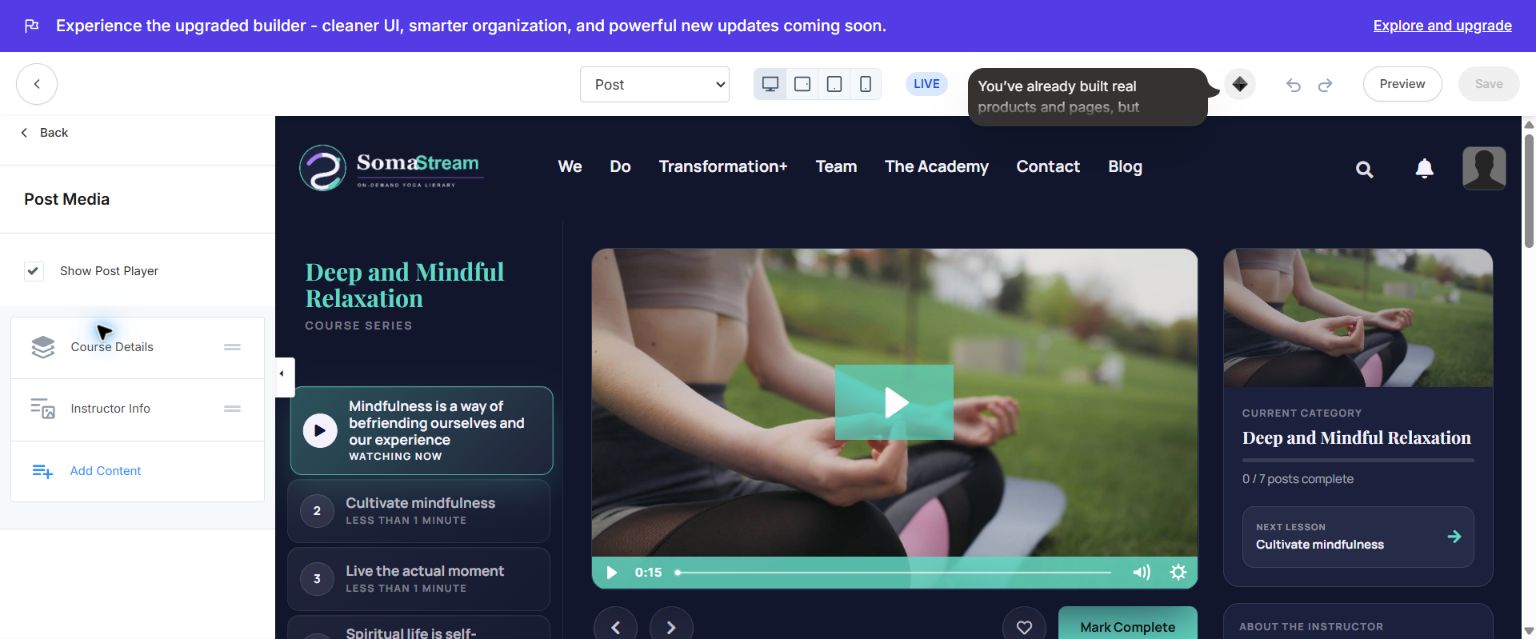
Show or hide the lesson player, Course Details and Instructor Info. Use Add Content for supported sidebar video, image, text, image+text and video+text blocks.
### Other section features
- Product Banner: optional promotional banner with two actions.
- Dashboard Body: repeatable video, text and image blocks.
- Dashboard Sidebar: repeatable card, video, text and image blocks.
- Navigation: post/lesson navigation, navigation title, progress and action controls.
- Search Results: search result and no-result presentation.
- Category views: cinematic category hero, category outline/progress, banner override and per-category colors.
Global settings reference
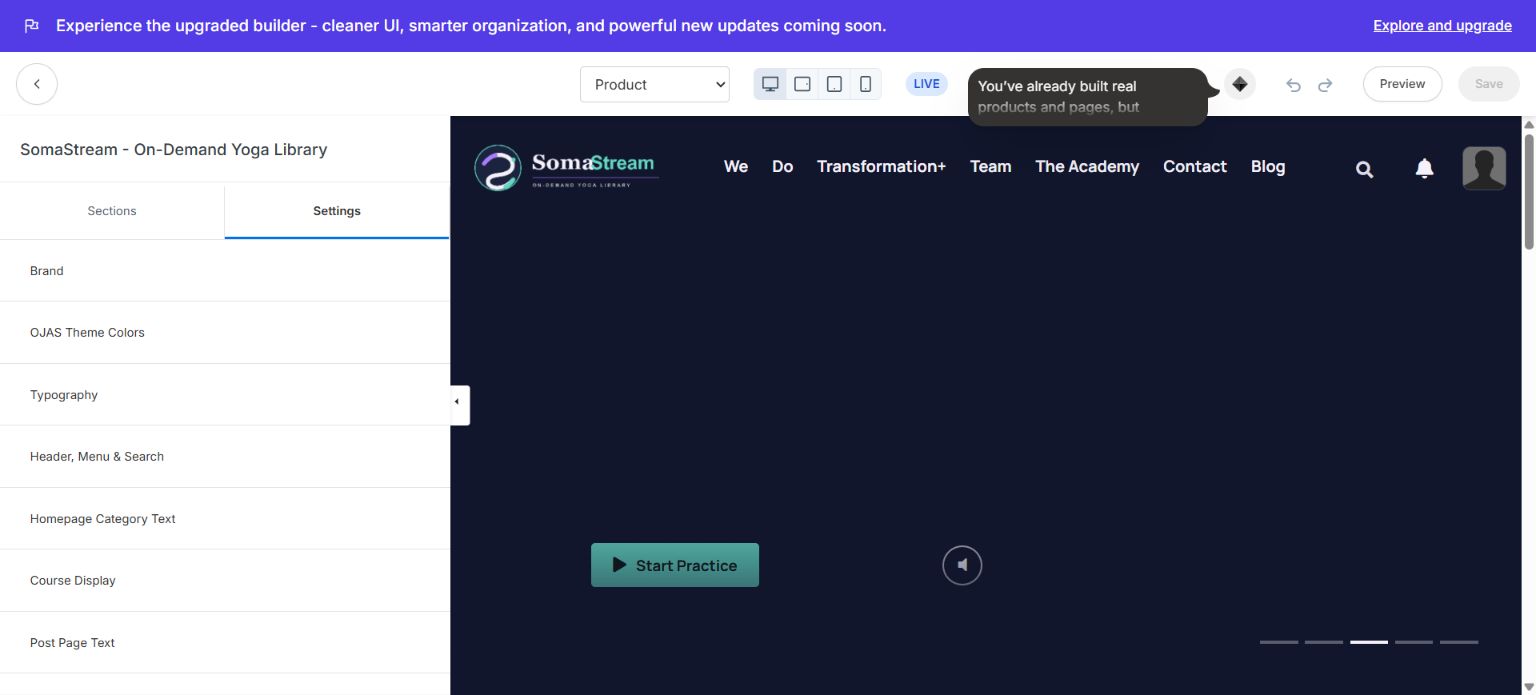
### Brand
Set the favicon and Favorites label.
### OJAS Theme Colors
Set Accent/Buttons, Brand Tone, Surface/Cards and Background colors. Verify accessible contrast for text, buttons, locked states and focus indicators.
### Typography
Choose body and heading font families. Optionally enable custom font scaling and set body plus H1–H6 sizes separately for desktop and mobile.
### Header, Menu & Search
Configure search visibility and placeholder; previous/next labels; hero badge/play/resume/details/My List text; preview metadata; lesson/episode labels; and account settings, announcements, settings and logout labels.
### Homepage Category Text
Configure category kicker, heading, Explore labels and the drip, scheduled, locked and lesson-count text.
### Course Display
Control the Dashboard, Categories tab, custom landing page, category thumbnails and lesson thumbnails.
### Post Page Text
Configure module, badge, assessment, audio, download, watch, completed, category popup, video complete, progress, favorites, download and comment labels/empty states.
### Advanced
Control Product Home slider autoplay, hover styles and corner shapes.
### Community Experience
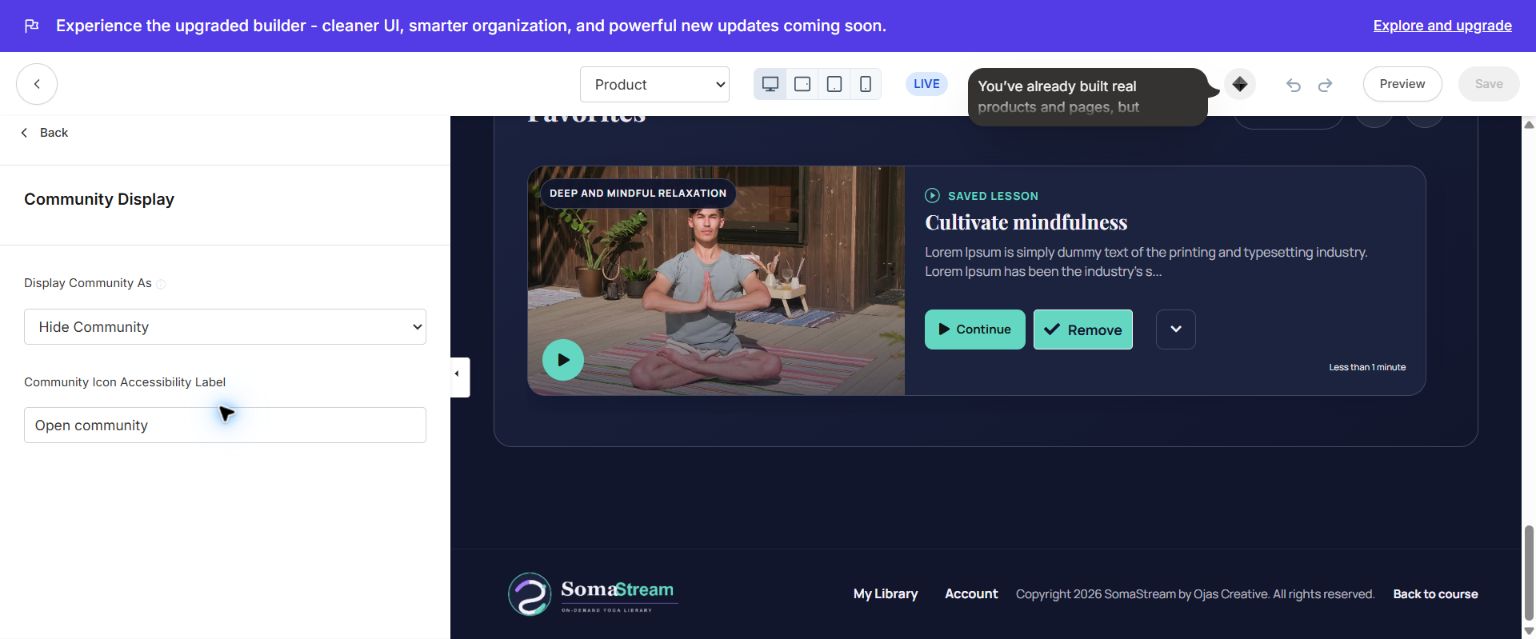
Choose Hide Community, Bottom Section Only, Header Popup Only, or Bottom Section + Header Popup, and provide an accessible icon label.
Community activation — complete workflow
Ojas Stream displays Kajabi's native Community. It never bypasses Kajabi permissions.
- 1In Kajabi, create or confirm the native Community and the channel/circle intended for this Course.
- 2Confirm the Course Offer grants the access group containing that channel. Without this, a real member can receive Unauthorized.
- 3Open Ojas Stream Customize → Product page → Sections → Community Widget.
- 4Choose the Community Channel.
- 5Configure accessibility label, eyebrow, heading, description, popup button and close label.
- 6Use Link to Community channel settings only when you want the admin shortcut.
- 7Open Settings → Community Experience and choose the required display mode.
- 8Save and test with a non-admin member who owns the same Offer/access group.
- 9Test both desktop and a real mobile browser.
If Community is blank or Unauthorized: open the same Community/channel outside Ojas Stream or compare with Kajabi's default Course template. If it also fails there, correct the Kajabi member, Offer and access-group permissions. The template cannot bypass native authorization.
Course content and access states
| Kajabi item | Ojas Stream behavior |
| Course/Product | Complete branded member library |
| Module/Category | Category rail and member outline group |
| Lesson/Post | Media, progress, copy, downloads and navigation |
| Locked | Remains unavailable until Kajabi grants access |
| Drip/Scheduled | Uses Kajabi availability rules and configured labels |
| Draft/Unpublished | Hidden from normal members |
| Completed | Drives completion badges, progress and Continue Watching |
- Keep titles concise for mobile cards and drawers.
- Use consistent 16:9 media with a clear focal point.
- Test members with and without access.
Video, audio, downloads and comments
- Use Show Post Player for the primary lesson player.
- Configure Course Details and Instructor Info from their blocks.
- Add accessible media titles, captions/posters and useful download filenames.
- Verify audio icons, play/pause state and duration on mobile.
- When Course comments are disabled, confirm the entire comments section disappears.
Search, favorites, announcements and navigation
- Search uses the labels under Header, Menu & Search and Post Page Text.
- Favorites/My List requires Kajabi member data; configure action and empty-state labels.
- Announcements use native Kajabi data and the configured Read More label.
- Previous/next navigation must respect locked, draft and unavailable content.
- Search, announcements, Community, category and account overlays must remain readable and closable on mobile.
Mobile experience
- Set mobile logo dimensions independently.
- Keep bottom-tab labels short and test iPhone/Android safe areas.
- Test the Course outline, search, announcements, Community and account overlays.
- Verify long titles wrap without clipping.
- Verify the footer, instructor card, progress card and comments do not overlap fixed navigation.
Test and launch
- 1Check header, sidebar, hero, category rails, cards, modals, footer and long pages on desktop.
- 2Check drawers, fixed tab bar, progress, popups, safe areas and touch targets on mobile.
- 3Test video, audio, thumbnails, captions, downloads and external links.
- 4Test purchased, unpurchased, locked, drip, completed, draft and unpublished states.
- 5Test search, announcements, comments, favorites and Community.
- 6As a non-admin member, open from Library, resume a lesson, mark complete and confirm progress.
- 7Activate Ojas Stream, then repeat critical member-access checks.
Updating and rollback
- 1Download the latest official ZIP and review release notes.
- 2Keep the customized live template installed for rollback.
- 3Install the new version beside the live version unless an update explicitly supports in-place replacement.
- 4Compare/reapply settings and repeat QA.
- 5Activate only after verification.
Troubleshooting
| Issue | What to check |
| ZIP rejected | Use the original Course/Product template ZIP; do not extract or re-zip it. |
| Installed but not live | Preview it, then use the separate Activate action. |
| Logo missing or oversized | Re-select, save, and set desktop/mobile dimensions separately. |
| Cards empty | Publish modules/lessons and add thumbnails. |
| Locked state wrong | Verify Kajabi access/drip settings with a restricted member. |
| Community blank | Confirm channel, Offer access group and member permission. |
| Community Unauthorized | Test native Kajabi Community and fix authorization first. |
| Comments shell remains | Disable Course comments, save and verify the whole section is hidden. |
| Mobile overlap | Check modal, footer and bottom-nav safe areas; shorten labels. |
| Changes look stale | Save, refresh and confirm the correct Course, page type and version. |
Final launch checklist
- Correct Course and original ZIP confirmed.
- Ojas Creative — Ojas Stream 7.1.4 installed.
- Brand, colors, typography, Header, Footer and Course Display configured.
- Product Home, categories, posts, access states and instructor content configured.
- Community channel and Offer access group tested as a real member.
- Search, favorites, announcements, comments, media and downloads tested.
- Desktop, real mobile, accessibility and purchase-to-access QA passed.
- Demonstration copy, media and links removed.
- Previous template retained for rollback.
Need support?
Include the template version, affected Course page, browser/device, a cropped screenshot and exact reproduction steps. Never share Kajabi passwords, customer data, payment credentials, API keys or access tokens.
Guide resources
Downloadable attachments
Continue learning
Ready to build your CineFlow site?
Keep this guide open while you customize, and contact support if you get stuck.