
Momentum Pro — Advanced Kajabi Course Theme Guide
A focused, premium course experience with advanced navigation, member controls, progress visibility, and fast lesson discovery.
This guide covers installation, every major theme feature, the Kajabi builder controls, responsive behavior, testing, updating, troubleshooting, and support for Momentum Pro.
Quick facts
| Item | Value |
| Product | Momentum Pro |
| Product type | Advanced Theme |
| Platform | Kajabi Courses |
| Theme version | 1.0.0 |
| Base experience | Momentum-style course navigation |
| Theme status | Installed, active, and live-preview verified |
| Documentation version | 1.0.0 |
| Kajabi product used for verification | Clarity Bridge — Coaching & Consulting Blueprint |
| Kajabi product ID | 2149530727 |
Verified screenshots
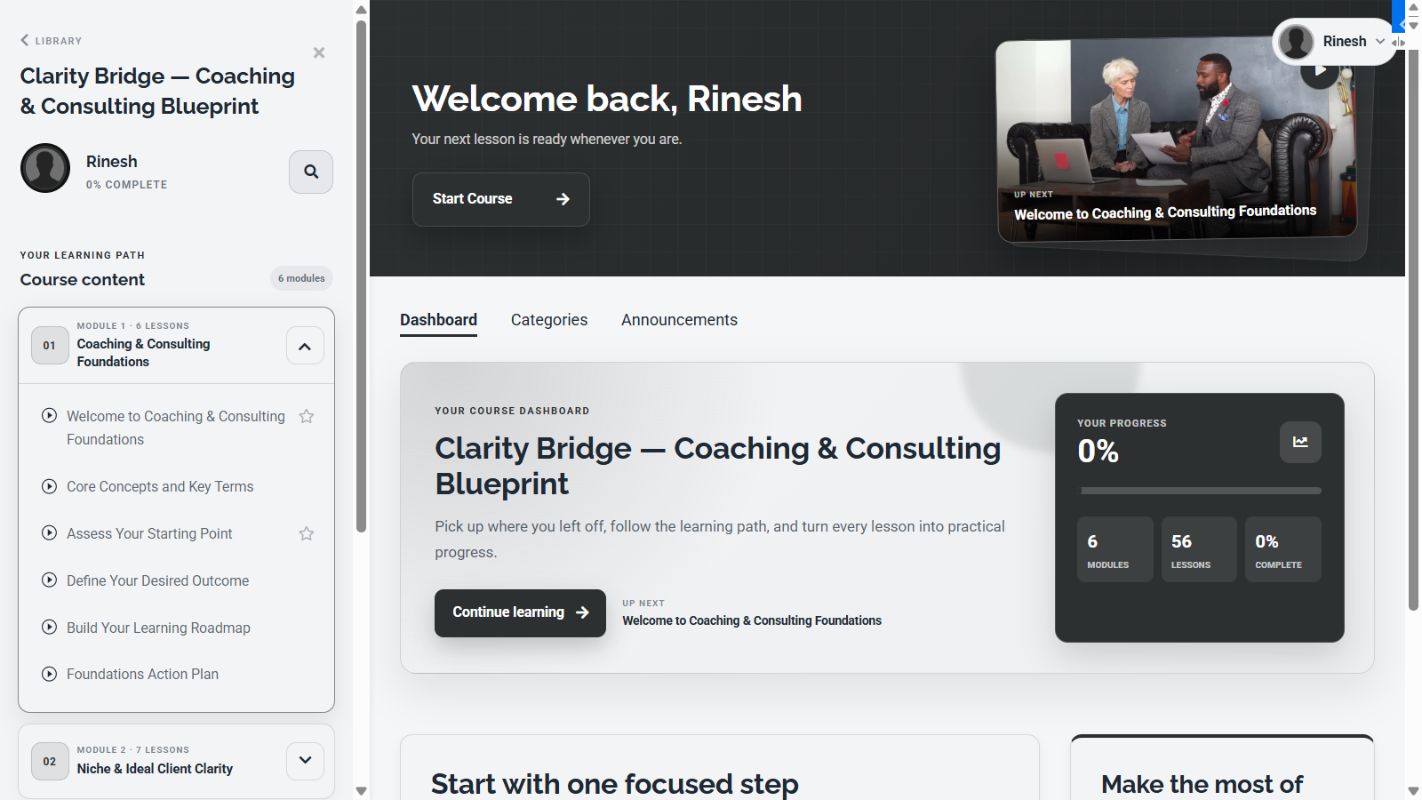
### Course dashboard and progress overview
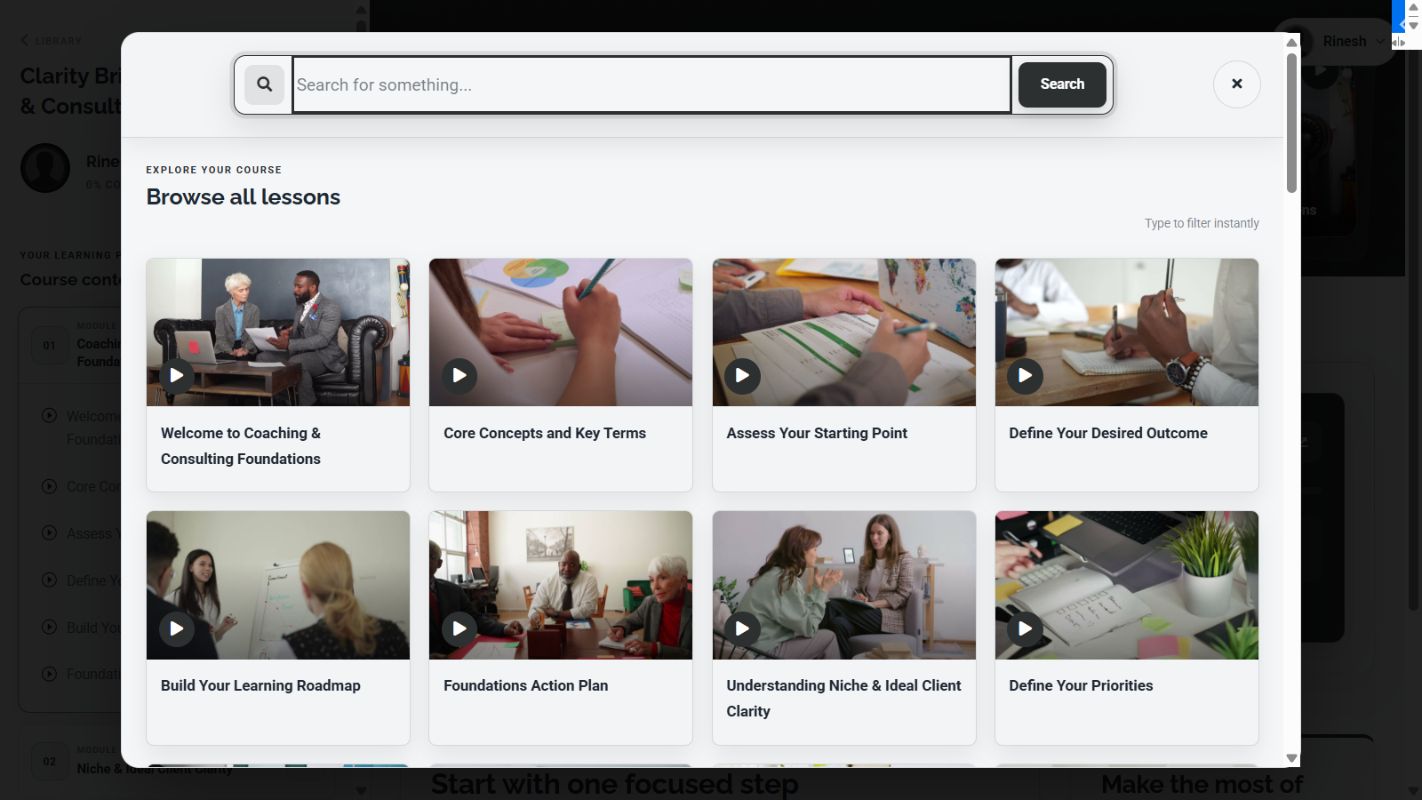
### Advanced lesson search overlay
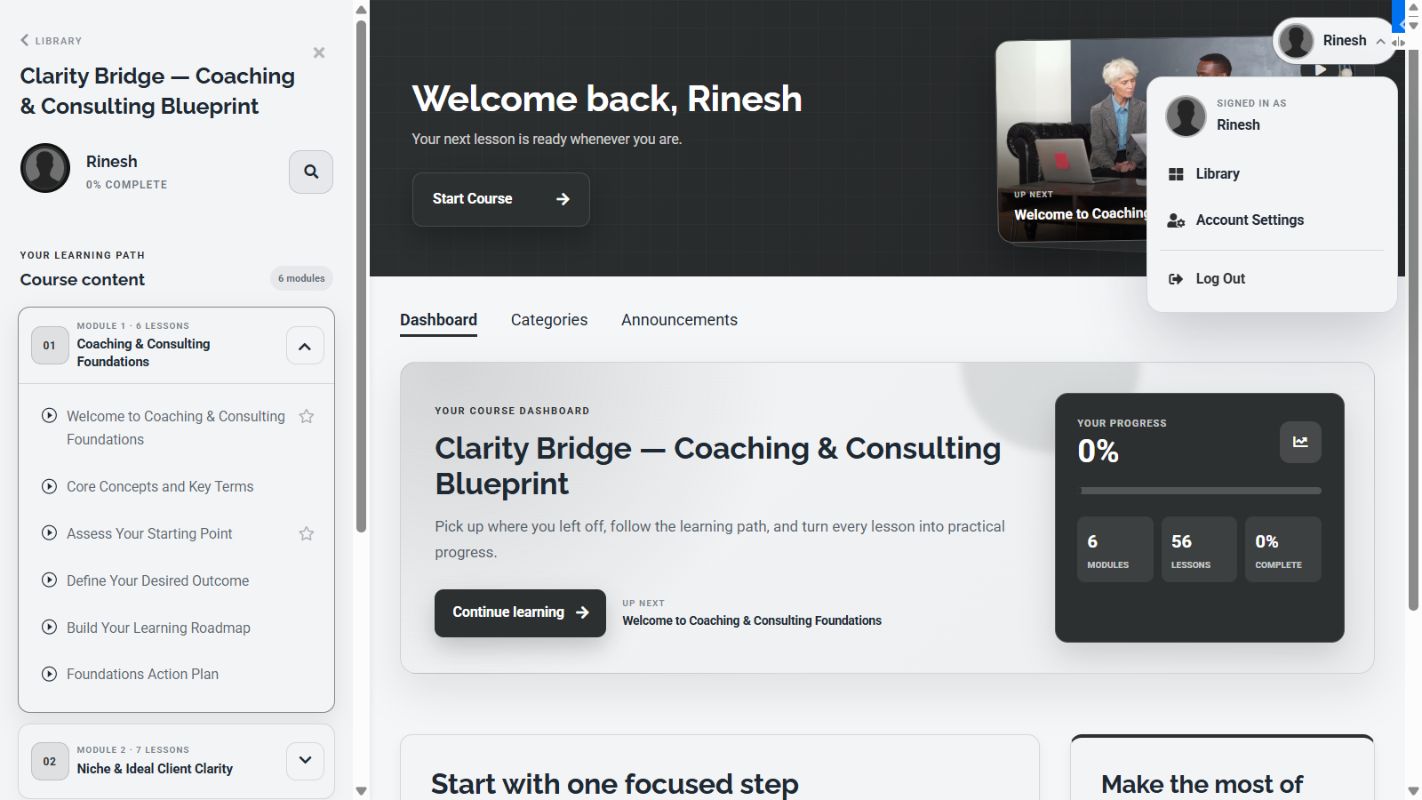
### Member account menu
### Lesson page

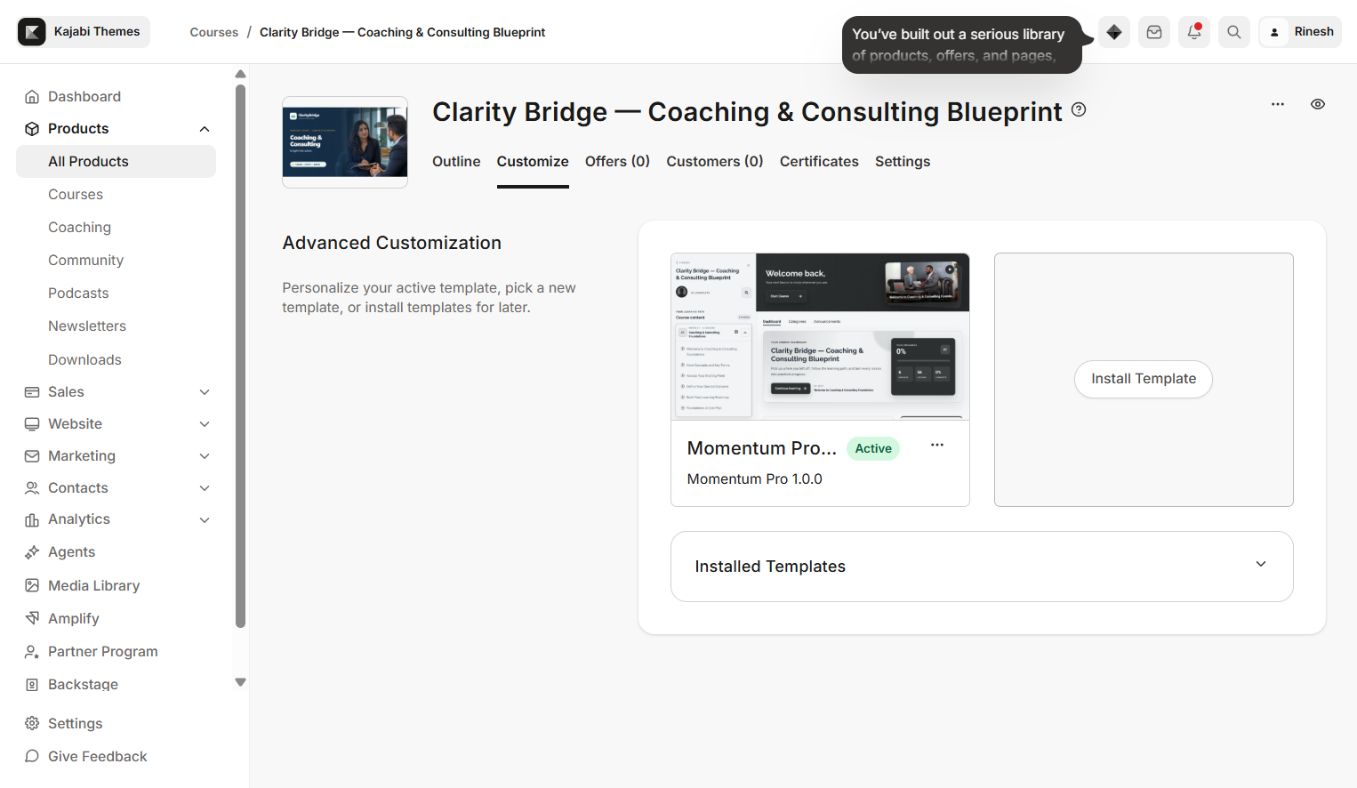
### Installed and active theme
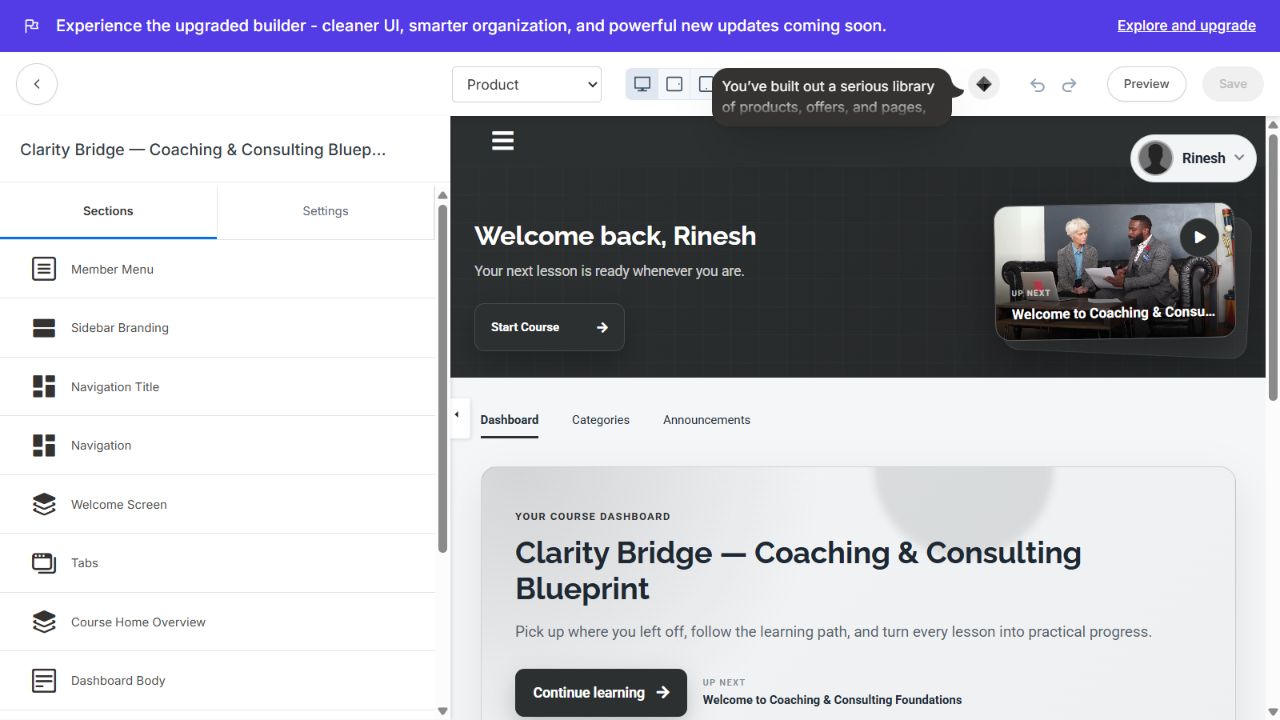
### Theme editor sections
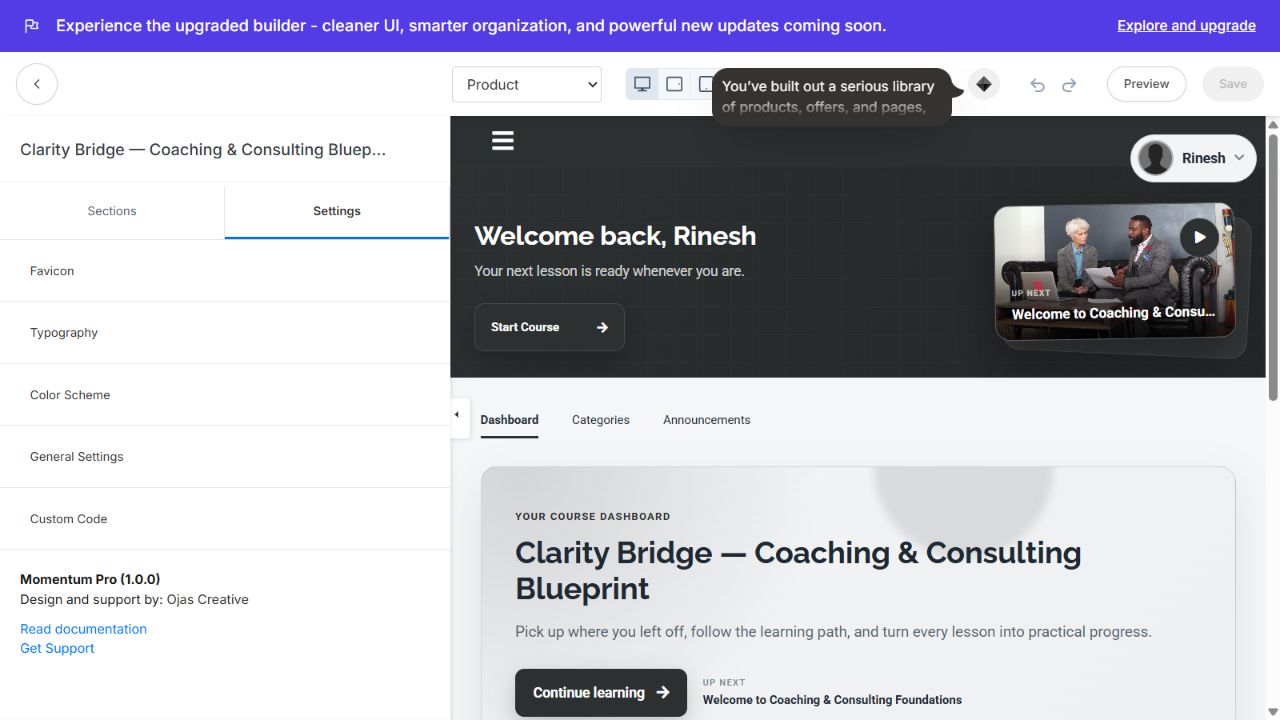
### Global theme settings

Complete feature inventory
### Advanced member dashboard
- Personalized welcome banner using the signed-in member’s name.
- Start Course, Resume Course, and Start Course Over states based on member progress.
- Up Next lesson card with lesson image, title, and direct lesson link.
- Course Home Overview with course title, editable supporting copy, and Continue Learning action.
- Live completion percentage with a visual progress bar.
- Automatic module and lesson totals generated from the Kajabi product outline.
- Dashboard, Categories, and Announcements navigation tabs.
- Optional dashboard content and supporting sidebar blocks.
### Course navigation sidebar
- Persistent desktop course navigation with all Kajabi modules and lessons.
- Numbered module cards with module and lesson totals.
- Expand/collapse controls for each module.
- Active lesson, completed lesson, locked content, paywall, and nested subcategory states.
- Member name, avatar, and course completion percentage.
- Back-to-library or configurable navigation destination.
- Optional branded sidebar logo with adjustable width and destination.
- Compact responsive toggle for tablets and phones.
### Advanced lesson search
- Search button available directly in the course navigation.
- Full-screen, Netflix-inspired lesson browser.
- Instant client-side filtering while the member types.
- Kajabi search-results support when a query is submitted.
- Lesson cards with thumbnail, title, play affordance, and direct lesson link.
- Support for lessons inside both modules and nested subcategories.
- Editable search prompt, button label, results heading, and no-results message.
- Keyboard-friendly dialog structure with a clear close action.
### Member account controls
- Desktop profile trigger with member avatar and optional member name.
- Account dropdown with Library, Account Settings, and Log Out actions.
- Optional mobile bottom navigation.
- Mobile links for Home, Categories, Library, and Profile.
- Editable navigation labels from the Kajabi theme editor.
### Lesson experience
- Kajabi-native video, audio, text, assessment, and live-session content support.
- Responsive lesson media area.
- Lesson duration and completion action.
- Previous/next lesson navigation.
- Lesson body content and downloads.
- Comments and reply workflow.
- Locked and paywalled lesson states.
- Teaching Assistant/Agents blocks where supported by the Kajabi account.
- Live-session recording, agenda, status, CTA, participant, and download components.
### Community and supporting content
- Optional Community Widget on the course dashboard.
- Configurable dashboard body with text, image, video, coaching scheduler, and Agent blocks.
- Configurable dashboard sidebar with card, text, image, video, coaching scheduler, and Agent blocks.
- Announcements page with pagination.
- Category and nested-category templates.
- Search-results template.
- Lesson completion and paywall sections.
Product page sections
The Sections tab for the Product page includes:
- 1Member Menu
- Show or hide the member menu.
- Show or hide the member name.
- Enable mobile bottom navigation.
- Edit Home, Categories, Library, Profile, Account Settings, and Log Out labels.
- 1Sidebar Branding
- Show or hide the sidebar logo.
- Upload a transparent logo.
- Set logo width from 80–240 px.
- Link the logo to Library, Product Home, or Site Home.
- 1Navigation Title
- Edit the Library and Complete labels.
- Show the member avatar.
- Configure the back link and destination.
- 1Navigation
- Show or hide lesson posts.
- Control the learning-path presentation.
- 1Welcome Screen
- Edit Start, Resume, and Start Over actions.
- Edit eyebrow, welcome copy, supporting message, and remaining-content label.
- Show the product cover or upload a custom cover image.
- Control banner height and button color.
- 1Tabs
- Edit Categories, Dashboard, and Announcements labels.
- 1Course Home Overview
- Edit the eyebrow and description.
- Edit Continue Learning, Up Next, Progress, Modules, Lessons, and Complete labels.
- 1Dashboard Body
- Set content alignment.
- Add text, image, video, coaching scheduler, or Kajabi Agent blocks.
- 1Community Widget
- Connect a Kajabi Community experience and configure its presentation.
- 1Dashboard Sidebar
- Set alignment.
- Add cards, text, images, video, coaching scheduler, or Kajabi Agent blocks.
Other page-specific sections
- Mini Dashboard: compact member/course context on category and lesson pages.
- Category Outline: category progress and lessons.
- Announcements: announcement list and pagination.
- Search Results: editable search-result and empty-state text.
- Post Actions: duration, downloads, completion, and next-lesson controls.
- Post Completion: completion-state presentation.
- Post Paywall: text, image, video, and CTA paywall content.
- Post Teaching Assistant: Kajabi Agent placement.
- Live Session Details: live video, status, agenda, participants, downloads, and CTA content.
Global Settings tab
### Favicon
- Upload a 32×32 PNG browser icon.
- Supports transparent PNG files.
### Typography
- Select a base/body font family.
- Select a separate heading font family.
- Supports Kajabi brand-font defaults and Google Fonts.
### Color Scheme
- Primary Color: primary brand elements.
- Accent Color: buttons and highlighted actions.
- Background Color: main theme background.
- Text Color: headings, body copy, and navigation text.
### General Settings
- Show or hide the course dashboard.
- Show or hide lesson search.
- Edit search prompt, search-button label, results heading, and empty-state text.
- Edit Previous and Next pagination labels.
- Edit comment placeholder, submit, reply, edit, locked, loading, and show-more labels.
### Custom Code
- Add trusted embedded scripts when required.
- Test custom code on a duplicate theme before using it on a live course.
Page templates included
Use the page selector at the top of the Kajabi builder to preview:
- Announcements
- Categories
- Category
- Comment
- Post / lesson
- Product home
- Search
Installation
- 1Open Kajabi → Products → your course → Customize.
- 2Select Install Template.
- 3Choose Upload Template and upload
momentum-pro-kajabi-course-theme-v1.0.0.zip. - 4Wait for Momentum Pro 1.0.0 to appear in Installed Templates.
- 5Open the theme menu and activate Momentum Pro if it is not already active.
- 6Select Customize and confirm the Product preview loads.
- 7Open the member preview in a separate tab and test the dashboard, search, member menu, and one lesson.
Recommended customization order
- 1Global Color Scheme
- 2Typography and favicon
- 3Sidebar Branding
- 4Navigation Title and back-link destination
- 5Member Menu and mobile navigation labels
- 6Welcome Screen
- 7Dashboard Tabs
- 8Course Home Overview
- 9Dashboard Body and Sidebar blocks
- 10Community Widget
- 11Lesson/post settings
- 12Search and language labels
- 13Desktop, tablet, and mobile QA
Responsive behavior
- Desktop uses a persistent learning-path sidebar and wide course content area.
- Tablet layouts retain quick course access while reducing spacing.
- Mobile uses the sidebar toggle and optional bottom navigation.
- Dashboard cards and progress panels stack on narrow screens.
- Lesson media scales to the available width.
- Search becomes a full-screen touch-friendly dialog.
- Long module and lesson names wrap instead of being clipped.
Pre-launch checklist
- [ ] Momentum Pro 1.0.0 is installed and marked Active.
- [ ] Product home opens without a blank screen or “Theme not found.”
- [ ] Sidebar logo and destination are correct.
- [ ] Member account dropdown opens and all destinations work.
- [ ] Mobile bottom navigation is enabled if required.
- [ ] Search opens, filters lessons, submits queries, and closes correctly.
- [ ] Dashboard shows the correct module count, lesson count, and progress.
- [ ] Continue Learning and Up Next open the correct lesson.
- [ ] Categories, nested sections, locked lessons, and dripped content display correctly.
- [ ] Video/text lessons, downloads, comments, completion, and next lesson work.
- [ ] Community Widget points to the correct community/channel.
- [ ] Announcements and search-results pages load.
- [ ] Colors and typography meet readable contrast requirements.
- [ ] Product, Post, Category, Search, and Announcements templates were previewed.
- [ ] Desktop, tablet, and mobile modes were checked.
Updating safely
- 1Record the installed version and duplicate the active theme when possible.
- 2Capture the current settings before changing them.
- 3Install a newer Momentum Pro ZIP as a separate theme.
- 4Test all page templates and member actions before activation.
- 5Activate the new version only after QA passes.
- 6Keep the previous working version available for rollback.
Troubleshooting
### Theme not found
Return to the same Kajabi product’s Customize page, confirm Momentum Pro is installed, and reopen its editor from that product. Do not reuse a theme-editor URL copied from another product.
### Editor preview is blank
Wait for the embedded preview to load, switch to another page type, and return to Product. Open the separate member preview to confirm the live experience before capturing screenshots.
### Dashboard is hidden
Open Settings → General Settings and enable Show Dashboard.
### Search is missing
Enable Show Search in General Settings and confirm the sidebar/navigation section is visible.
### Sidebar logo is missing
Enable Show Sidebar Logo, upload a logo or configure the Kajabi brand logo, and verify the selected link destination.
### Member menu is missing
Confirm a member is signed in, enable Show Member Menu, and verify the section is present on the Product template.
### Community block is empty
Connect the course to the intended Kajabi Community/channel and complete the Community Widget settings.
Support handoff
When requesting support, include:
- Product: Momentum Pro
- Theme version: 1.0.0
- Kajabi product ID
- Page template affected
- Device and browser
- Expected and actual behavior
- Screenshot and exact reproduction steps
Support: Ojas Creative Support
Guide resources
Downloadable attachments
Continue learning
Ready to build your CineFlow site?
Keep this guide open while you customize, and contact support if you get stuck.