
DemandCraft — Marketing & Sales Accelerator Library Complete Guide
Make attention matter.
Complete installation, brand palette, feature, Community, mobile, QA, update, and rollback guide for the DemandCraft Kajabi course template.
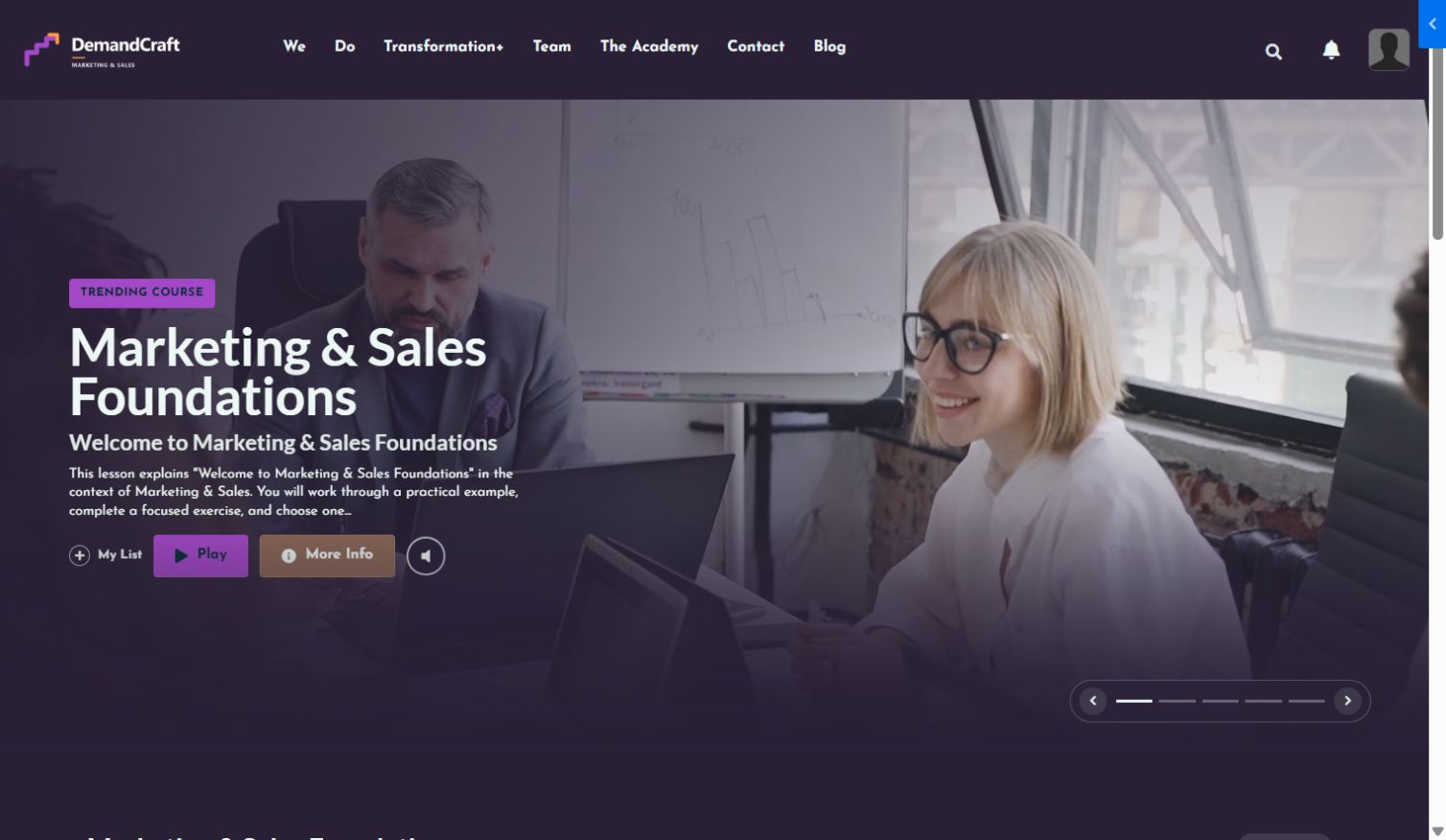
Quick facts
- Template: DemandCraft
- Category: Marketing & Sales Accelerator
- Platform: Kajabi Course/Product theme
- Responsive: Desktop, tablet, and mobile
- Brand system: Four global color roles
- Member tools: Search, announcements, favorites, progress, categories, locked/drip/scheduled states, downloads, comments, and Community access
- Safe install: Upload as a new installed template; never overwrite the active copy
01. Approved DemandCraft brand palette
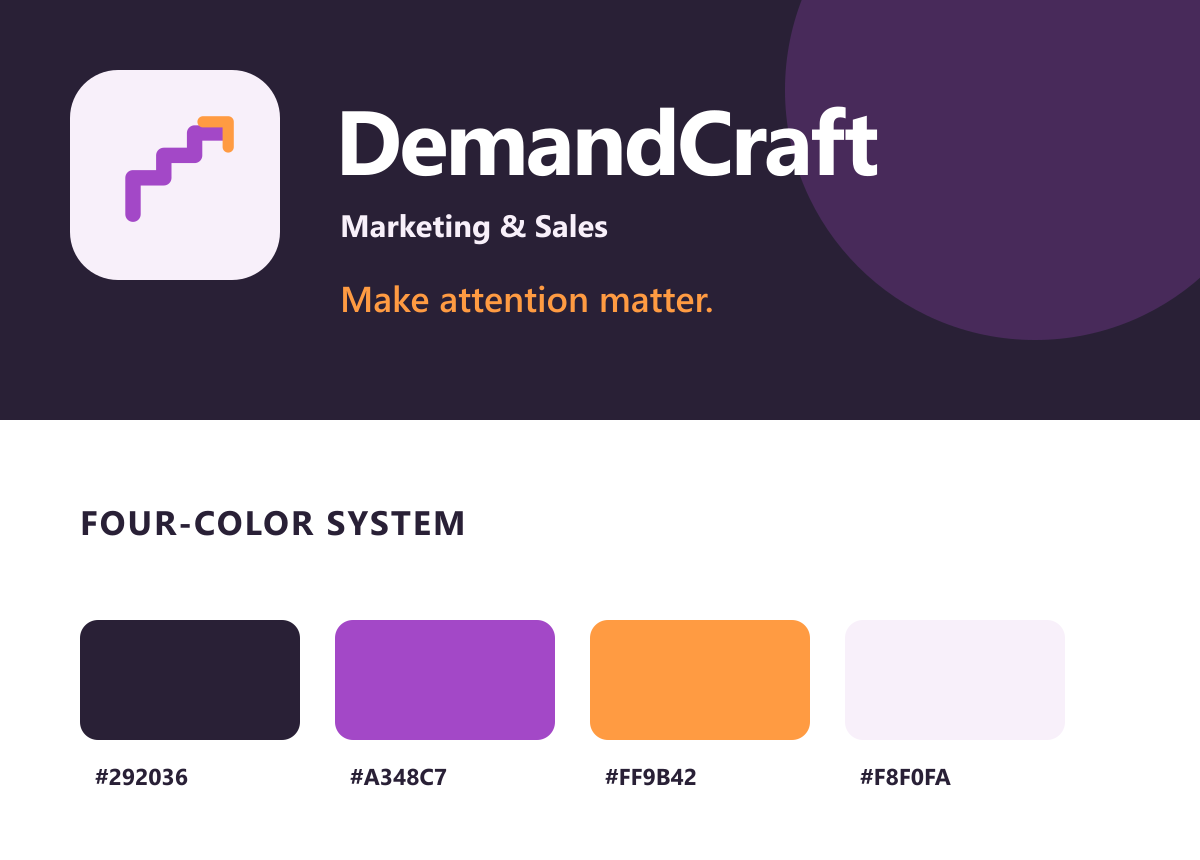
| Role | Color |
| Foundation | #292036 |
| Primary | #A348C7 |
| Accent | #FF9B42 |
| Canvas | #F8F0FA |
Use the primary logo on light Canvas backgrounds, the reversed logo on Foundation or Primary backgrounds, and the brand mark for compact square placements such as the favicon. Keep text contrast readable after every color change.
02. Complete installation and feature guide

This guide is based on the real Kajabi installation, course outline, responsive theme settings, supplied logo, and thumbnail treatment. The template is designed for an editorial member library experience while preserving Kajabi course data, customers, purchases, and lesson progress.
### Included experience
- Branded header with desktop and mobile logo controls
- Search-as-you-type lesson discovery
- Announcement popup
- Course progress and active-lesson states
- Category, subcategory, and post navigation
- Locked, drip, and scheduled category indicators
- Video, audio, downloads, comments, and instructor areas
- Favorites and remove-from-favorites behavior
- Responsive mobile bottom navigation
- Optional Community entry and display modes
- Footer logo, favicon, legal links, social links, and optional “Powered by Kajabi” control
03. Install without risk
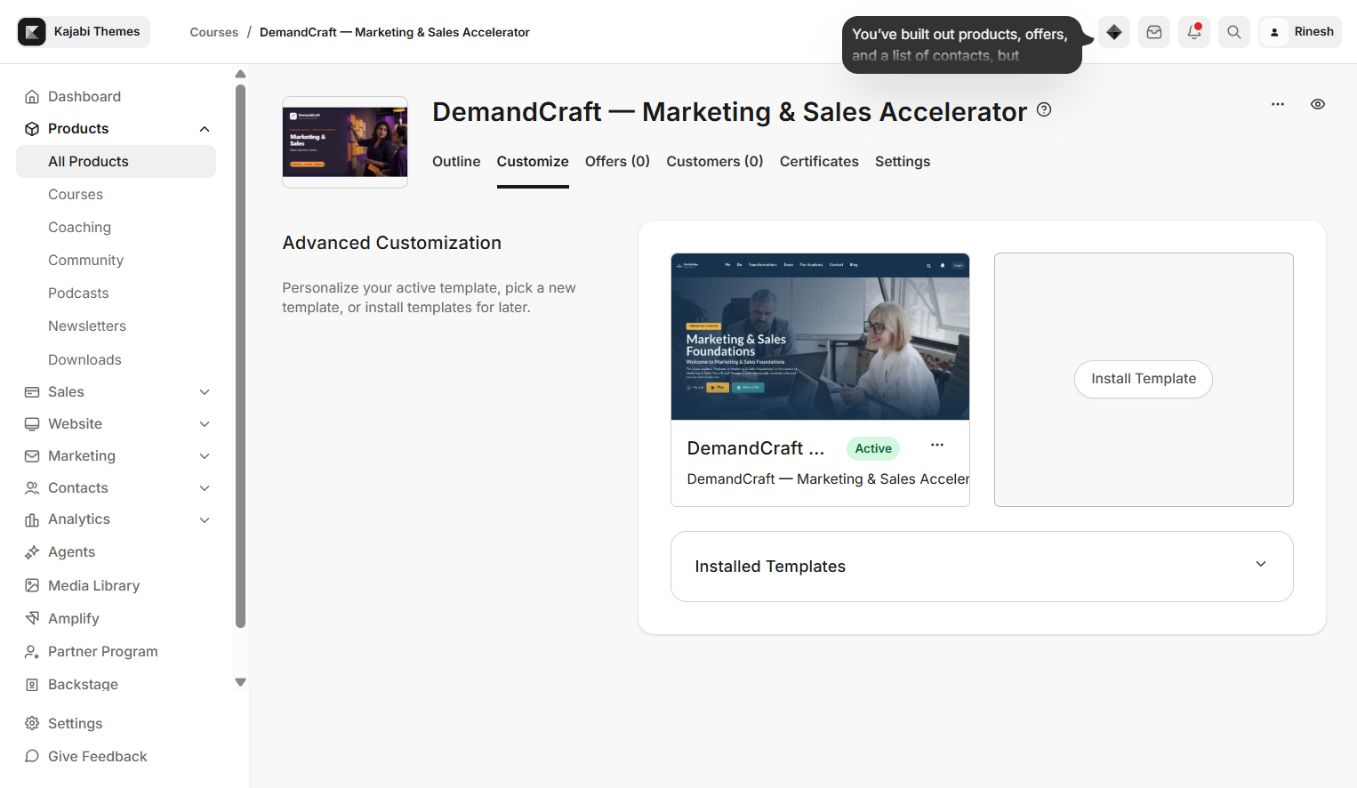
- 1In Kajabi, open Website > Course > Installed Templates for the intended product.
- 2Select Install Template > Upload Template.
- 3Upload the supplied DemandCraft ZIP. Do not unzip it before upload.
- 4Keep the current active template installed for rollback.
- 5Open the new copy in Customize and configure branding, colors, typography, header, footer, Community, and course display.
- 6Preview desktop, tablet, and mobile before activation.
- 7Activate only after the pre-launch checklist in this guide is complete.
Do not delete the previous active template until the new template has been tested with a real member account.
04. Global four-color pattern
Open Settings > OJAS Theme Colors and map the supplied palette to the four roles:
- 1Canvas / Theme Background — the lightest page background.
- 2Surface / Cards — panels, cards, popups, and elevated content.
- 3Primary / Buttons — primary actions, progress accents, and active states.
- 4Foundation / Navigation & Auto Contrast — header, footer, dark surfaces, and the source used for readable automatic foreground colors.
The template automatically derives readable light or dark text for important surfaces. After changing colors, verify navigation, cards, player controls, progress, locked states, links, announcements, Community overlays, and mobile navigation.
05. Complete settings reference
### Brand and identity
- Desktop logo image and width
- Mobile logo image and width
- Footer logo image and width
- Favicon/brand mark
- Product title fallback when no logo is supplied
- Social media URLs and visibility
- Optional “Powered by Kajabi” visibility
Recommended assets:
| Asset | Recommended format |
| Desktop logo | Transparent PNG or SVG, wide format |
| Mobile logo | Transparent PNG or SVG, compact format |
| Footer logo | Transparent or reversed PNG/SVG |
| Favicon | Square PNG, 512 × 512 px |
| Course thumbnail | 1280 × 720 px |
| Lesson thumbnail | 16:9, at least 1280 × 720 px |
| Hero/poster image | 1920 × 1080 px |
### Typography and spacing
Use the global typography controls for body and heading families. Keep body text at a minimum readable size, avoid very thin weights, and test long lesson/category titles. Use the font-size controls instead of hard-coded custom CSS so the system remains responsive.
### Header and member navigation
Configure logo sizing, menu links, CTA wording, search, announcements, account links, and mobile menu behavior. Search and announcements should remain accessible outside the collapsed mobile menu.
### Course display
Configure category card layout, course outline style, thumbnails, lesson status labels, progress wording, favorites, instructor information, comments, resource downloads, and mobile navigation labels.
### Community experience
Select one of the available modes:
- Hidden — no Community entry is shown.
- Direct link — opens the linked Kajabi Community/circle.
- Popup/overlay — opens Community in a focused overlay where supported.
Only enable Community after the course and test member have access to the intended Community product or circle.
### Favicon, footer, and social links
Upload the square favicon, confirm the footer logo and width, add only valid social URLs, and decide whether the optional Kajabi credit should be visible. Check every footer link in a live member session before launch.
06. Member experience features
- Course progress with completed and remaining lesson counts
- Active post focus and status highlighting
- Previous/next lesson navigation
- “Finish & Go to Next” completes the lesson before continuing
- Favorites with native Kajabi persistence
- Search results that update while typing
- Announcements with full content display
- Locked, drip, and scheduled labels/icons
- Category and subcategory navigation
- Video poster/playback and audio companion support
- Downloads and resource files
- Instructor panel and comments
- Accessible focus, keyboard controls, and responsive touch targets
07. Demo structure
Use the included demo content only as a layout reference. Replace all demo titles, descriptions, thumbnails, instructor information, links, downloads, and announcements before launch.
Suggested structure:
- Product home/library page
- Categories index
- Individual category page
- Lesson/post page
- Search and announcement overlays
- Favorites/library view
- Community entry
- Mobile course-outline drawer
08. Logo, thumbnails, video, and audio
Keep imagery consistent with the DemandCraft palette. Crop thumbnails to 16:9 and keep important faces away from edges. Upload lesson media through Kajabi lesson fields rather than embedding large files in custom code.
For video:
- Use an accessible title and poster image.
- Verify autoplay/muted behavior where configured.
- Test player controls and cropping on mobile.
- Keep captions or transcripts available when possible.
For audio:
- Add a clear file title.
- Verify duration, play/pause, progress, and download behavior.
- Test long filenames on narrow screens.
09. Community setup
- 1Create or select the correct Kajabi Community and circle.
- 2Grant the course offer/test member access.
- 3Open theme settings and choose the Community display mode.
- 4Add the Community URL or linked destination.
- 5Verify the icon, popup/direct link, close behavior, and mobile bottom navigation.
- 6Test outside admin preview using a real member login.
If Community is not part of the product, choose Hidden so no empty widget or spacing appears.
10. Pre-launch QA
- [ ] DemandCraft is installed in the intended Kajabi course
- [ ] Supplied logos, favicon, and thumbnails are present
- [ ] Four global color roles pass readable contrast checks
- [ ] Header, footer, buttons, links, and focus states are consistent
- [ ] Long category, subcategory, and lesson titles do not clip
- [ ] Search works while typing
- [ ] Announcements open, scroll, and close correctly
- [ ] Favorites add/remove without a page refresh
- [ ] Locked, drip, and scheduled states are visible
- [ ] Course progress and active lesson are accurate
- [ ] Previous, next, complete, and “Finish & Go to Next” work
- [ ] Video, audio, downloads, instructor, and comments are tested
- [ ] Community mode is correct for the product
- [ ] Desktop, tablet, and mobile layouts are checked
- [ ] Mobile bottom navigation and course outline drawer work
- [ ] Footer logo, social links, legal links, and optional Kajabi credit are correct
- [ ] Previous active template remains available for rollback
11. Updates and rollback
Upload every update as a separate installed template. Configure and test the new copy before activation. Keep the previous working version installed until production verification is complete.
Rollback is simple: reactivate the previous template. Kajabi course content, customers, purchases, and lesson progress remain in Kajabi and are not removed by switching templates.
Support handoff
When requesting support, include:
- Kajabi product name
- Installed template name/version
- Page URL
- Device and browser
- Screenshot or short recording
- Exact steps to reproduce
- Whether the problem appears in admin preview, live member view, or both
Continue learning
Ready to build your CineFlow site?
Keep this guide open while you customize, and contact support if you get stuck.