BoldHarbor — Business & Entrepreneurship Blueprint
BoldHarbor is the approved business and entrepreneurship variant built on VentureForge — Power Bloom 7.1.6. Preserve the supplied BoldHarbor logo, course thumbnail, spacing, and responsive proportions.
Approved BoldHarbor brand palette
| Role | Color |
| Foundation | #24303A |
| Primary | #3D7F75 |
| Accent | #F06D44 |
| Soft background | #EFF5F2 |
Use the primary logo on white/soft backgrounds, the reversed logo on Foundation or Primary, and the brand mark only for compact square placements.
Complete installation and feature guide
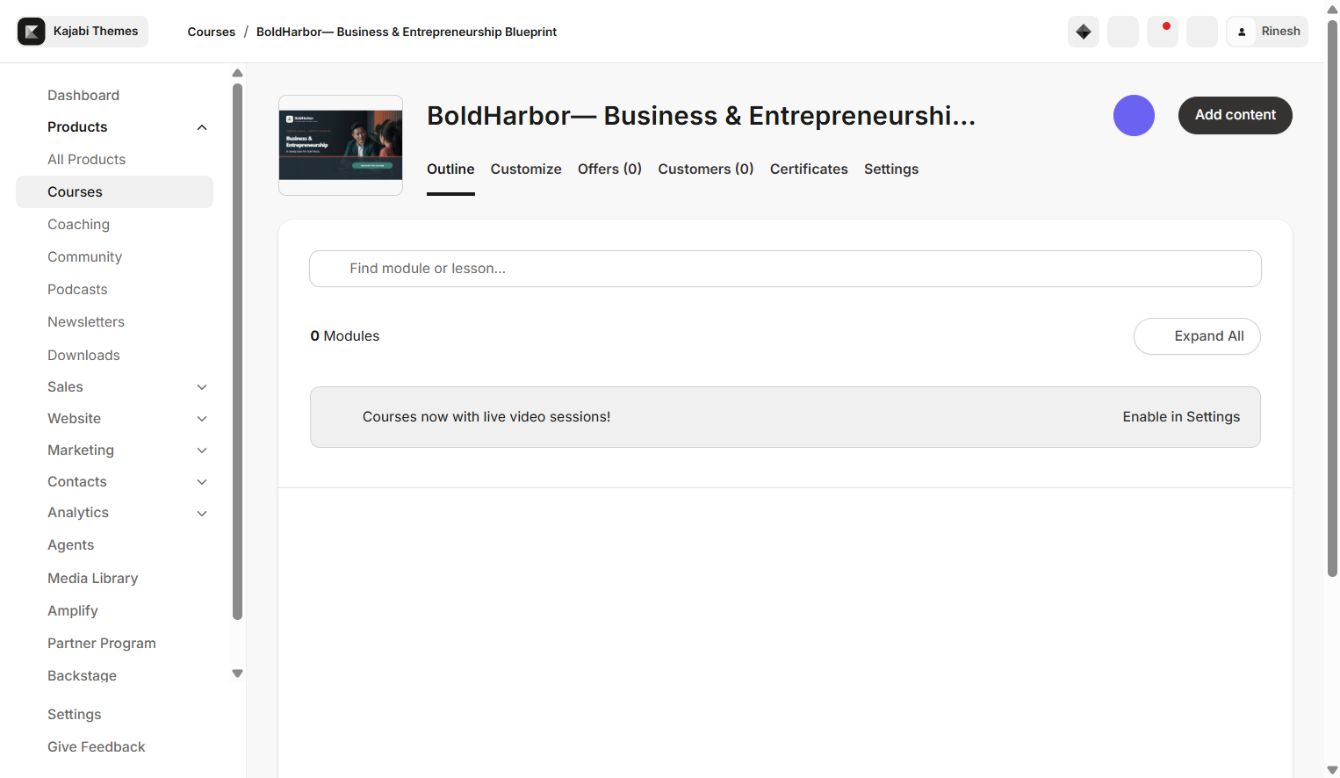
The verified installed product is VentureForge — Power Bloom 7.1.6, demonstrated on BoldHarbor — Business & Entrepreneurship Blueprint. The marketplace URL remains unchanged for customer access compatibility, while the visible product name and version match the actual Kajabi template. The supplied logo and thumbnail are already correct and should remain the visual reference.
Installation
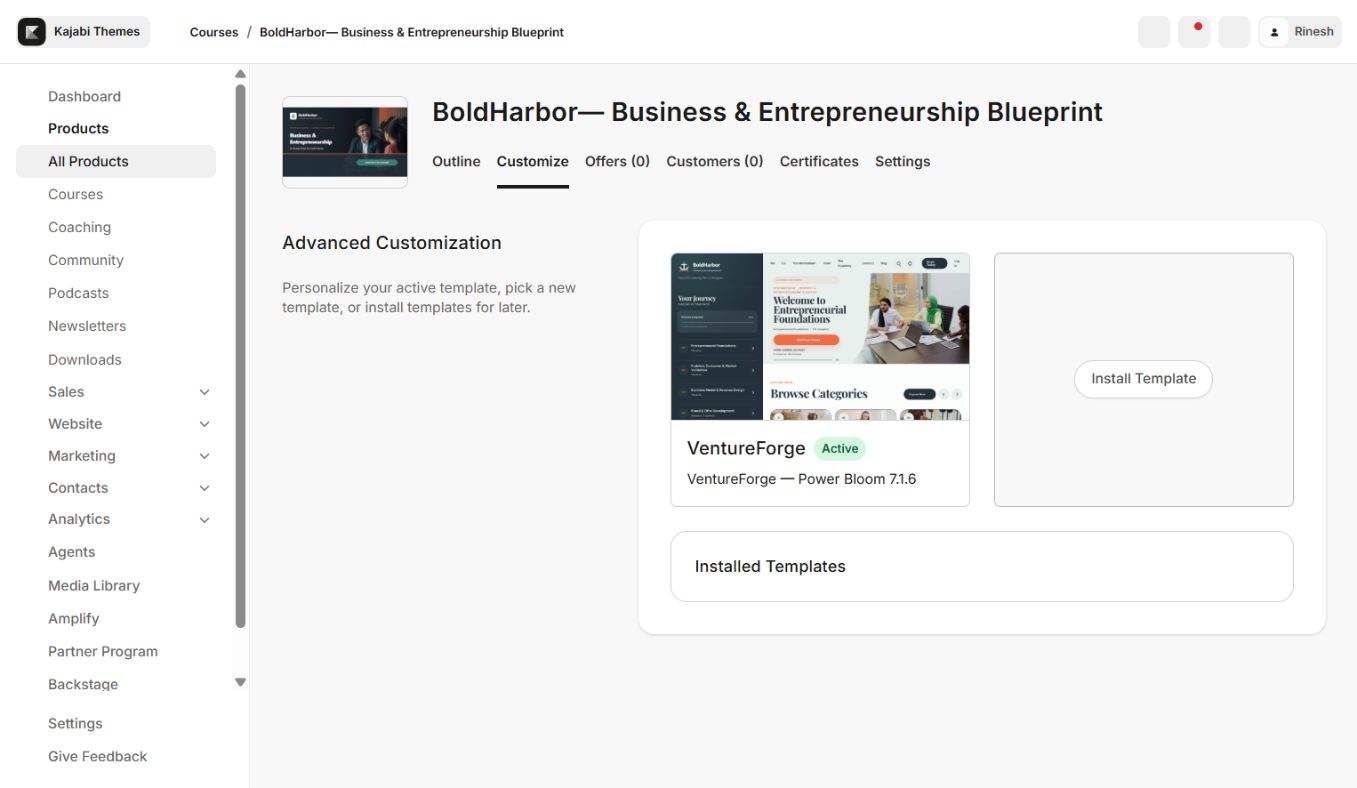
- 1Download the VentureForge ZIP from your customer account.
- 2Open the intended Kajabi Course and select Customize.
- 3Choose Install Template → Upload Template and upload the untouched ZIP.
- 4Confirm VentureForge — Power Bloom 7.1.6 appears in Installed Templates.
- 5Open Customize on the new copy, preserving the existing active template.
- 6Configure, preview, test as a non-admin member, and activate only after QA.
Four brand colors
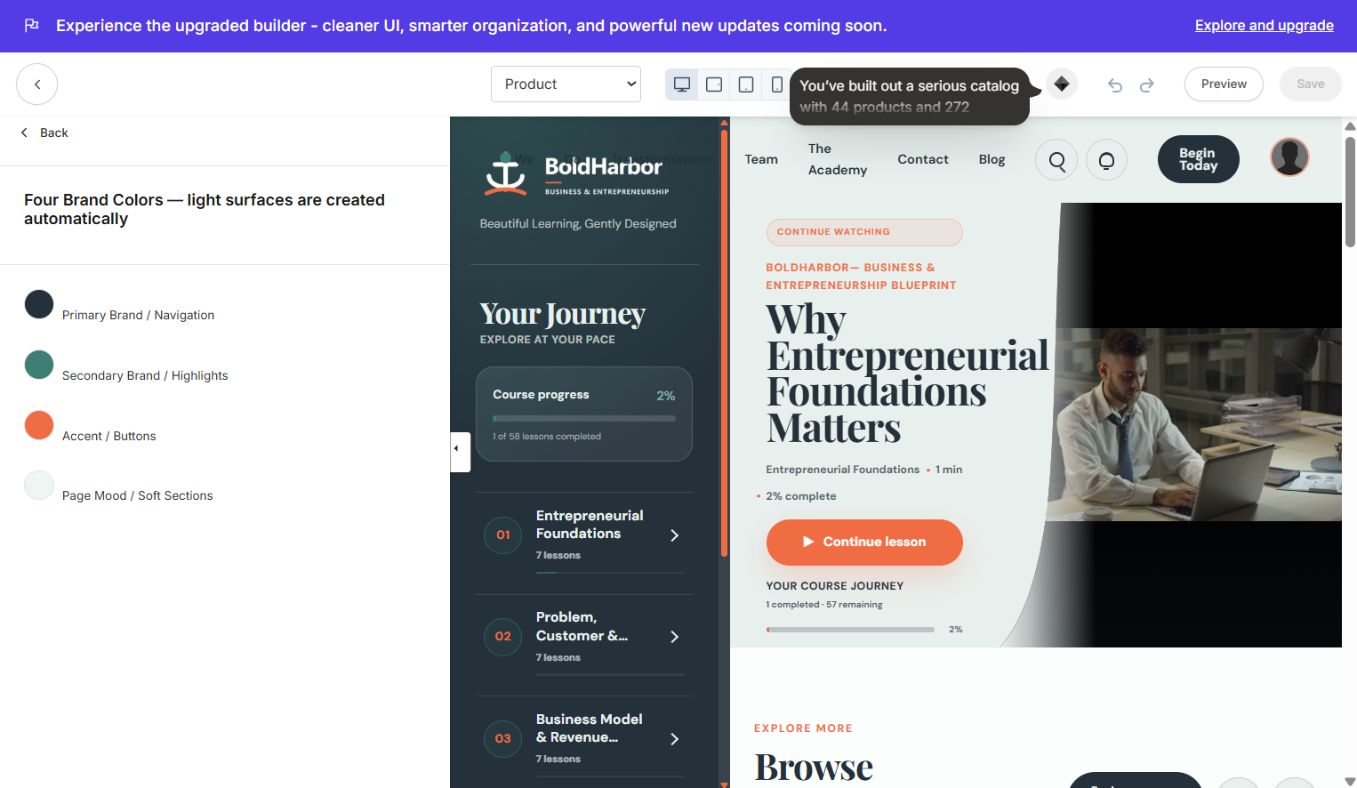
The Four-Color Theme uses Primary Brand / Navigation, Secondary Brand / Highlights, Accent / Buttons, and Page Mood / Soft Sections. Primary creates the brand anchor, Secondary handles supporting highlights, Accent is reserved for actions and progress emphasis, and Page Mood creates lighter visual separation. Test all combinations for contrast instead of adding disconnected custom colors.
Features and editor controls
VentureForge includes Search, Course Sidebar, Header, Product Home, Product Content Blocks, Community Widget, Product Favorites, Footer, and Mobile Navigation. Global options cover the Four-Color Theme, Typography, Language, Community Experience, and Favicon.
- Bold dashboard and featured lesson presentation
- Category sliders and responsive lesson cards
- Course/sidebar progress with completion status
- Search, favorites, announcements, and account controls
- Locked/dripped content presentation tied to Kajabi access
- Native Community entry point
- Responsive media and configurable mobile navigation
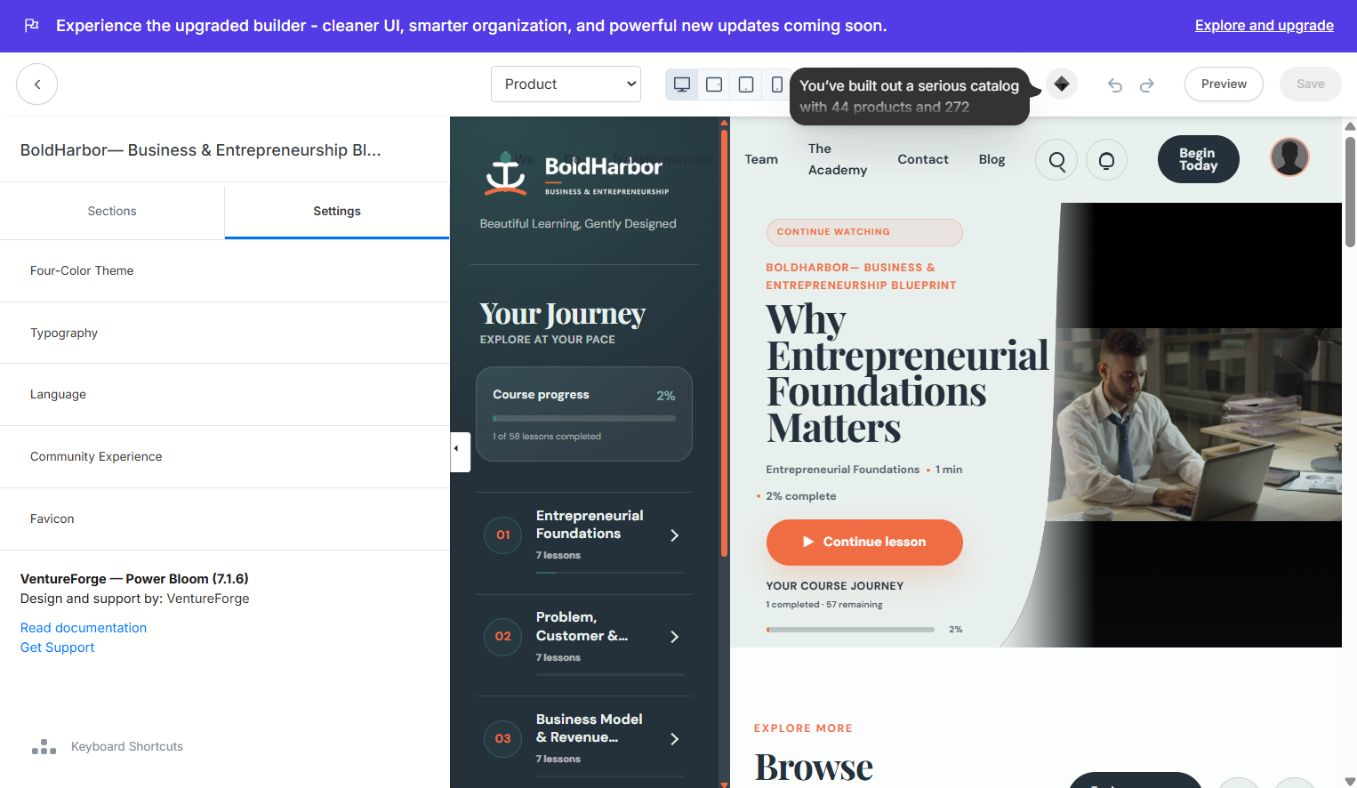
Demo course and content states
BoldHarbor contains Entrepreneurial Foundations, Problem/Customer/Market Validation, Business Model & Revenue Design, Brand & Offer Development, Launch & Customer Acquisition, a locked Seven-Day Business Launch Sprint, and draft Operations and Scale modules. Kajabi's Published, Draft, Locked, and Drip settings determine what members can access.
Branding and thumbnails
Retain the supplied logo proportions and approved thumbnail treatment. If you later create customer branding, duplicate the template first, use transparent logos with responsive dimensions, keep one thumbnail ratio across categories, and verify cropping at desktop and phone widths.
Community, search, and favorites
Select the correct Kajabi Community/circle and test with an entitled non-admin member. Search should return available course content only; Favorites should persist for the signed-in member. Verify Community, Favorites, and Search from the mobile navigation as well as desktop.
Pre-launch checklist
- Visible name and version read VentureForge — Power Bloom 7.1.6
- Correct BoldHarbor-style logo and thumbnails retained
- Four brand colors and typography checked for contrast
- All main page types and media formats checked
- Locked, drip, progress, and completion states checked
- Search, Favorites, Community, and mobile navigation checked
- Previous template retained for rollback
Safe updates and rollback
Upload updates as a separate template copy. Do not delete the active version during configuration. After member QA, activate the update and keep the previous version available until production has been verified.
Continue learning
Ready to build your CineFlow site?
Keep this guide open while you customize, and contact support if you get stuck.